Vilpower DLT registration Process
This help guide explains how to complete DLT registration on the VILPOWER (Vodafone-Idea) DLT portal for businesses in India.
Authkey supports you throughout this process to ensure faster approval and zero compliance issues.
Step 1: Entity Registration on ViL Power DLT Portal
Visit the Vi DLT Portal
To begin the registration process, open the official Vodafone-Idea DLT portal:
👉 https://www.vilpower.in/Click on “Signup” to create a new account.
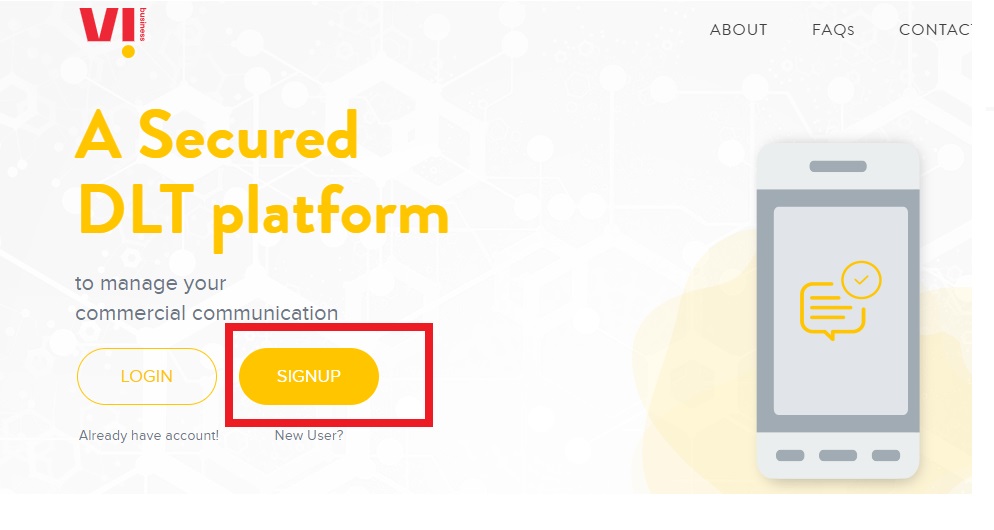
Select Registration Type
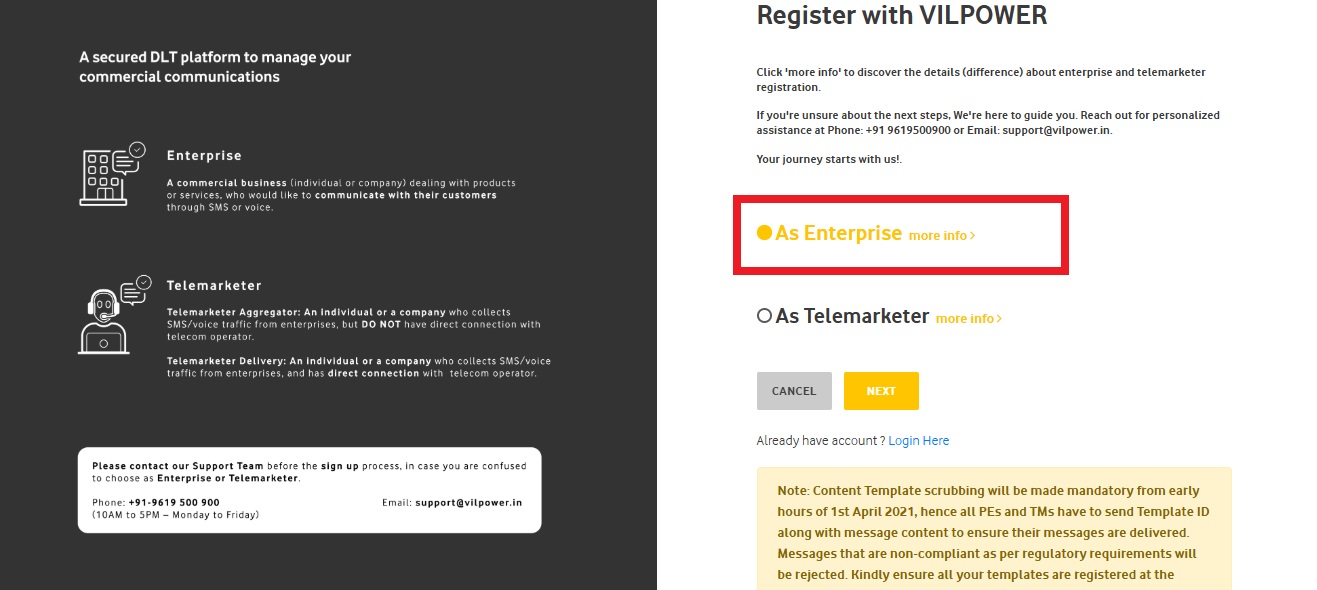
On the next screen, choose the registration type:
- As Enterprise – for businesses sending SMS
- As Telemarketer – only if you are a registered TM
For business messaging, select “As Enterprise” and click Next.
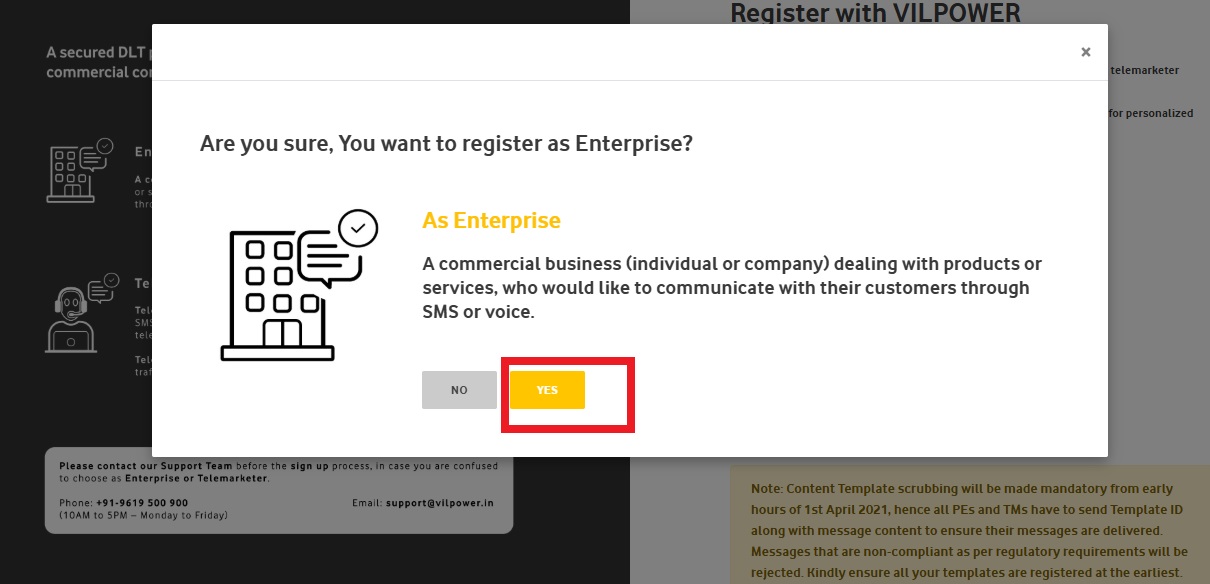
A confirmation popup will appear: “Are you sure you want to register as an Enterprise? Click Yes to continue.
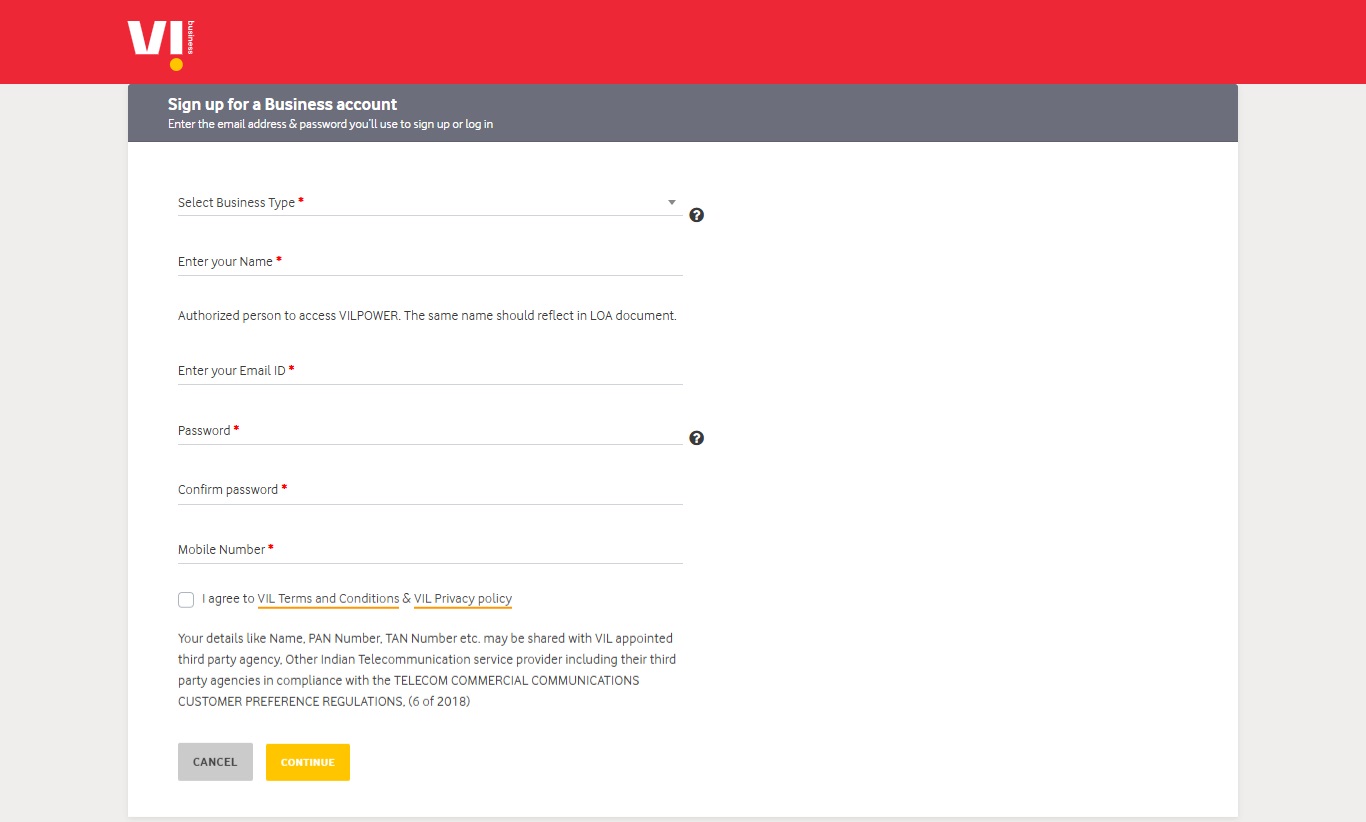
Create Your Login Account
Now, fill in the basic account details carefully:
- Business Type
Select your organization type (Private Limited, Partnership, Government, etc.) - Authorized Person Name
Enter the name of the person responsible for managing DLT activities - Email Address
Use an active email ID (preferably a business domain). This email will be verified and used for future logins. - Password
Create a strong password for your DLT account - Mobile Number
Enter an active mobile number. OTPs will be sent to this number during login and verification
Tick Agree to the Terms & Conditions. Click Continue to proceed.
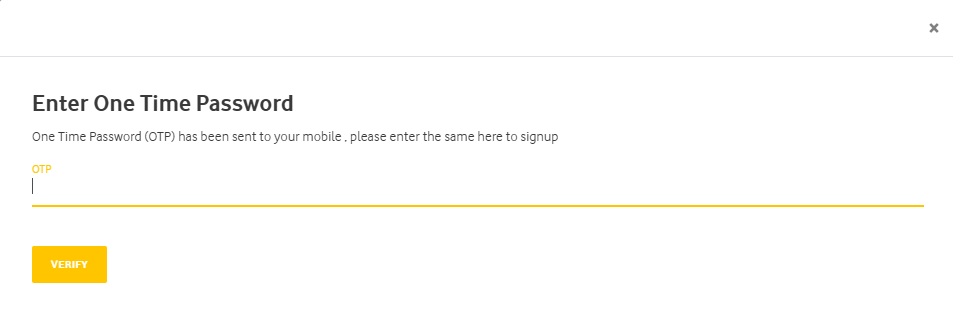
You will receive an OTP on your mobile number. Enter the OTP and click Verify.
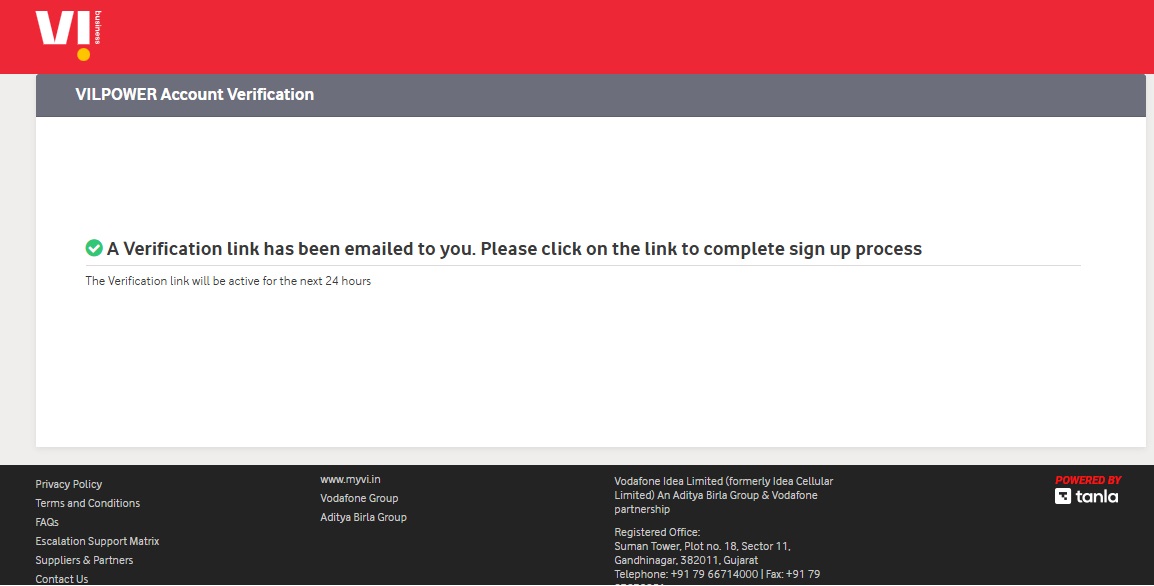
A verification link will be sent to your registered email ID.
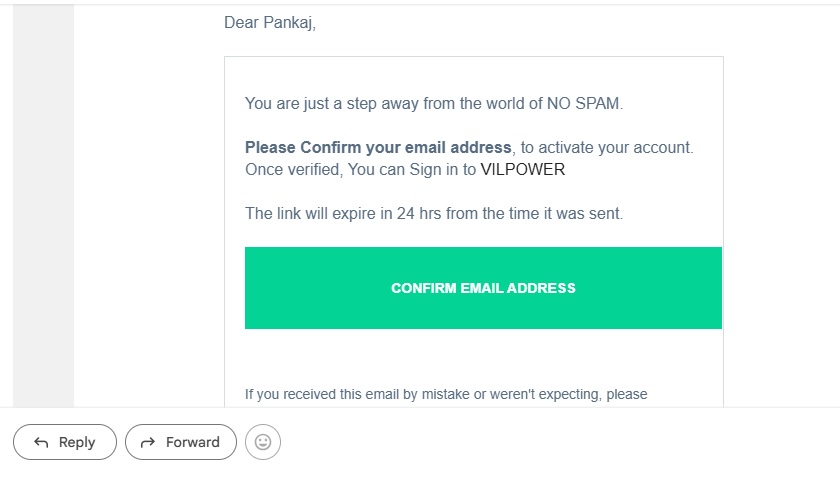
Click on the CONFIRM EMAIL ADDRESS available in the email received. It will verify the email address.
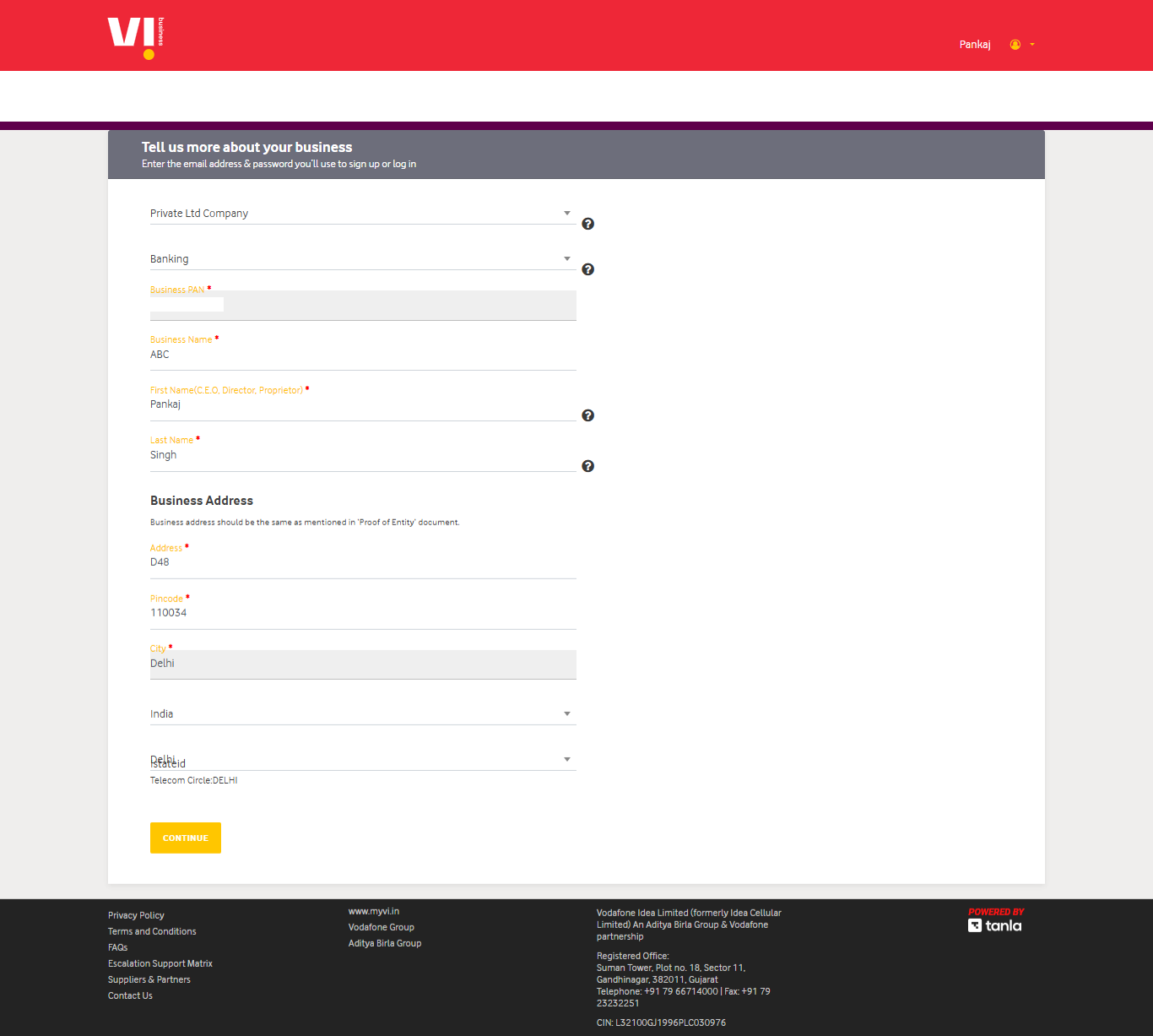
Enter Business Details
Next, you’ll be asked to provide your organization information:
- Business Type & PAN details will be auto-filled
- Select the business category that best matches your activity
- Enter the business name exactly as per documents
- Enter Authorized Person designation (Director, Proprietor, CEO, etc.)
- Enter the business address (must match official documents)
Click Continue to move ahead.
Upload Required Documents
Upload clear scanned copies of the following documents:
Mandatory Documents
- PAN Card (Business PAN / Personal PAN for proprietors)
- Proof of Business Entity (any one):
- Certificate of Incorporation
- Partnership / Proprietorship Deed
- Shop & Establishment Certificate
- Trade License
- Certificate of Incorporation
- Letter of Authorization (LOA)
Authorizing the registered person to manage DLT activities
Once uploaded, click Continue.
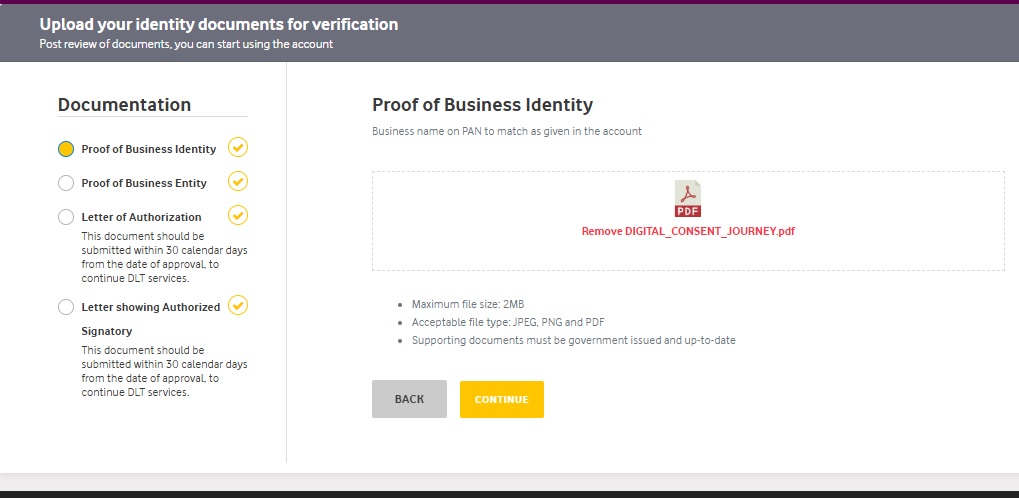
Add Telemarketer Details (Authkey)- PE TM Chain Binding
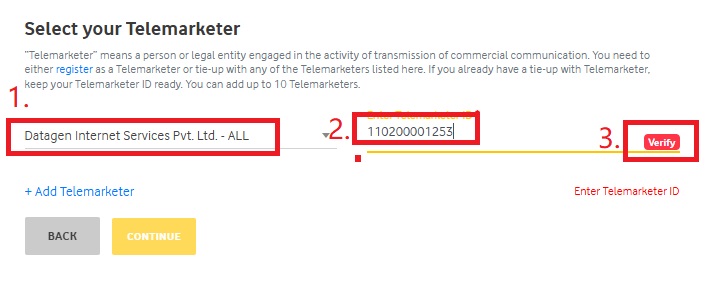
In the next step, you’ll link your entity with a telemarketer.
For Authkey, use the details below:
- Telemarketer : DATAGEN INTERNET SERVICES PVT. LTD.
- Telemarketer ID: 110200001253
Search using the name or ID and click Verify.
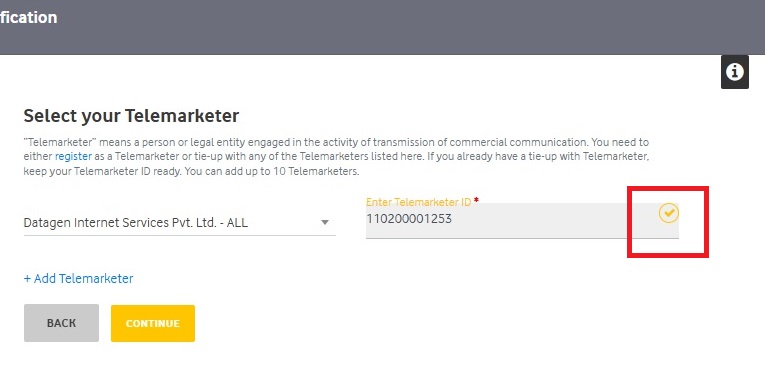
Once verified, a ✔️ tick will appear.
Note: Authkey is a product of Datagen Internet Services Pvt. Ltd.
Click on the verify button. It will verify and give a tick as verified.
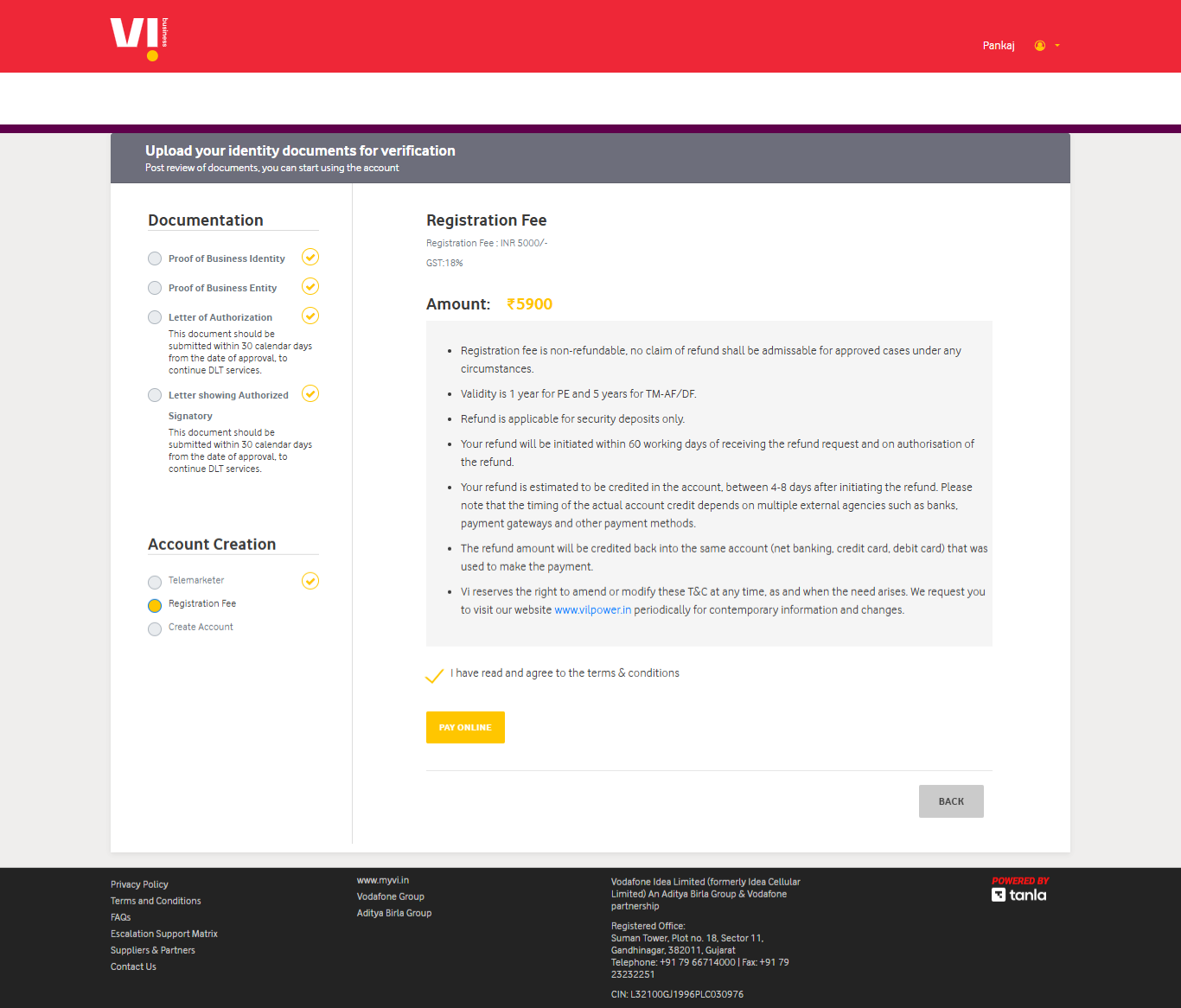
Next, it will open the Registration Fee Section.
It will need a fee of Rs. 5900 fee for the DLT registration. It is the overall fee for DLT registration in India. Registration fee is non-refundable, no claim of refund shall be admissible for approved cases under any circumstances.
Click on the Pay Online for online payment options.
After successful payment, a confirmation message will come that your payment is successful
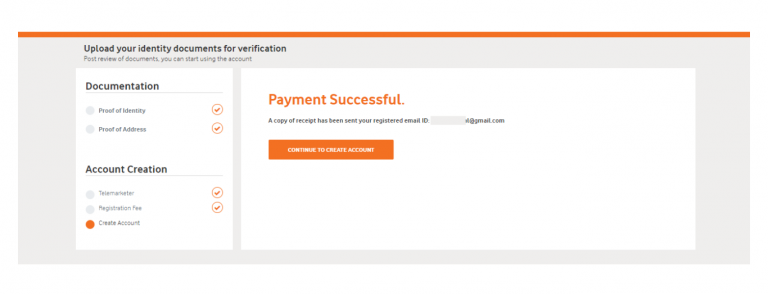
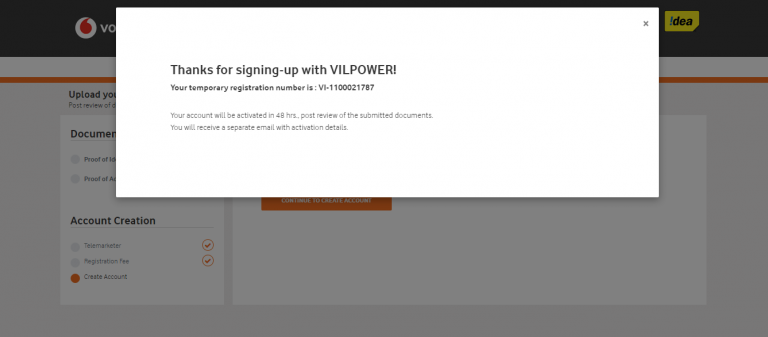
As you click on that CONTINUE TO CREATE ACCOUNT button, a dialog box will be displayed with the message ‘Thanks for signing-up’.
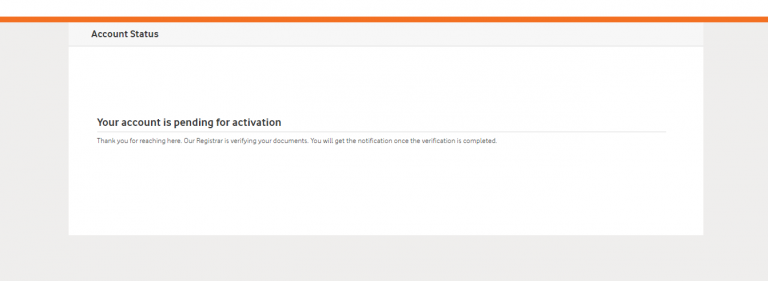
Your account status will now show as Pending Activation.
Once documents are verified by the operator, your Vi DLT account will be activated.
An Email will be received an email address with login details.
This is the process of creating an account or entity ID in a DLT platform in Vilpower. After registration you have to wait till further notice by TRAI.
Step 2: Header Registration
Once your Entity registration is approved, the next step is to register your SMS HEADER(Sender ID) on the Vilpower (Vodafone-Idea) DLT portal.
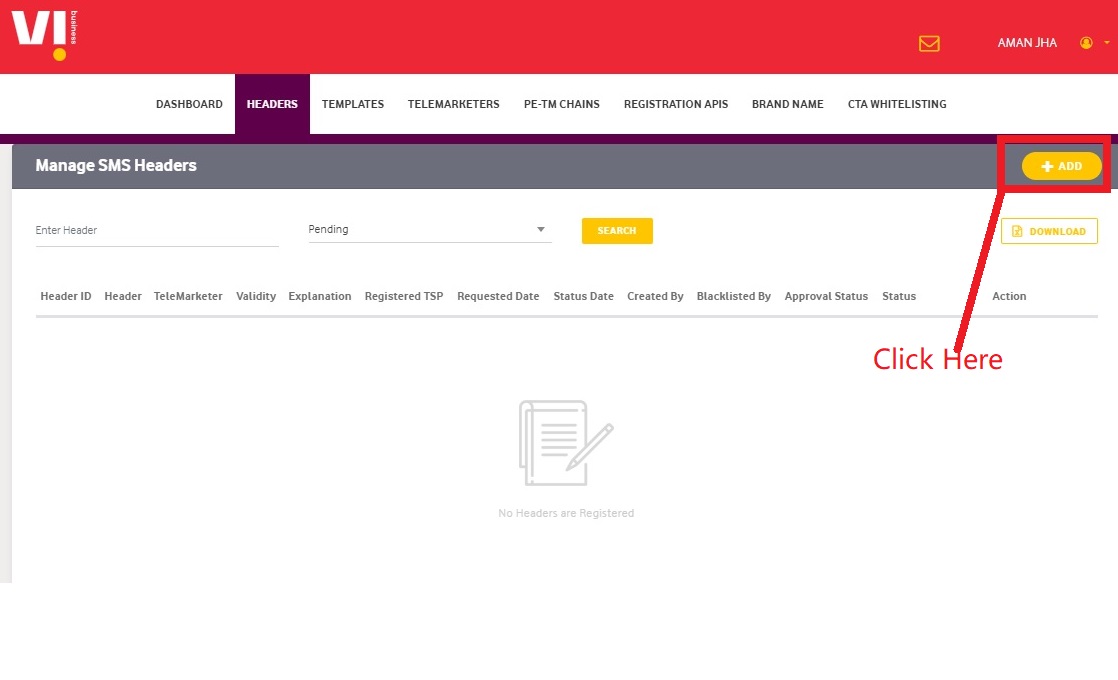
Navigate to Header Section, Go to the top menu and Click HEADERS → SMS HEADERS
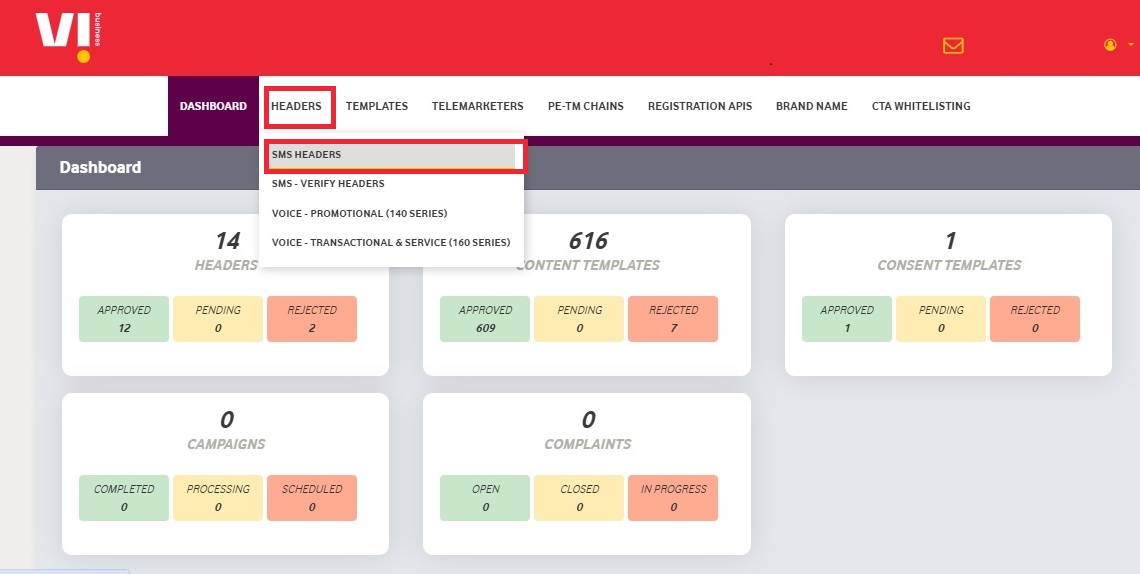
Next, Click + ADD(top-right corner)
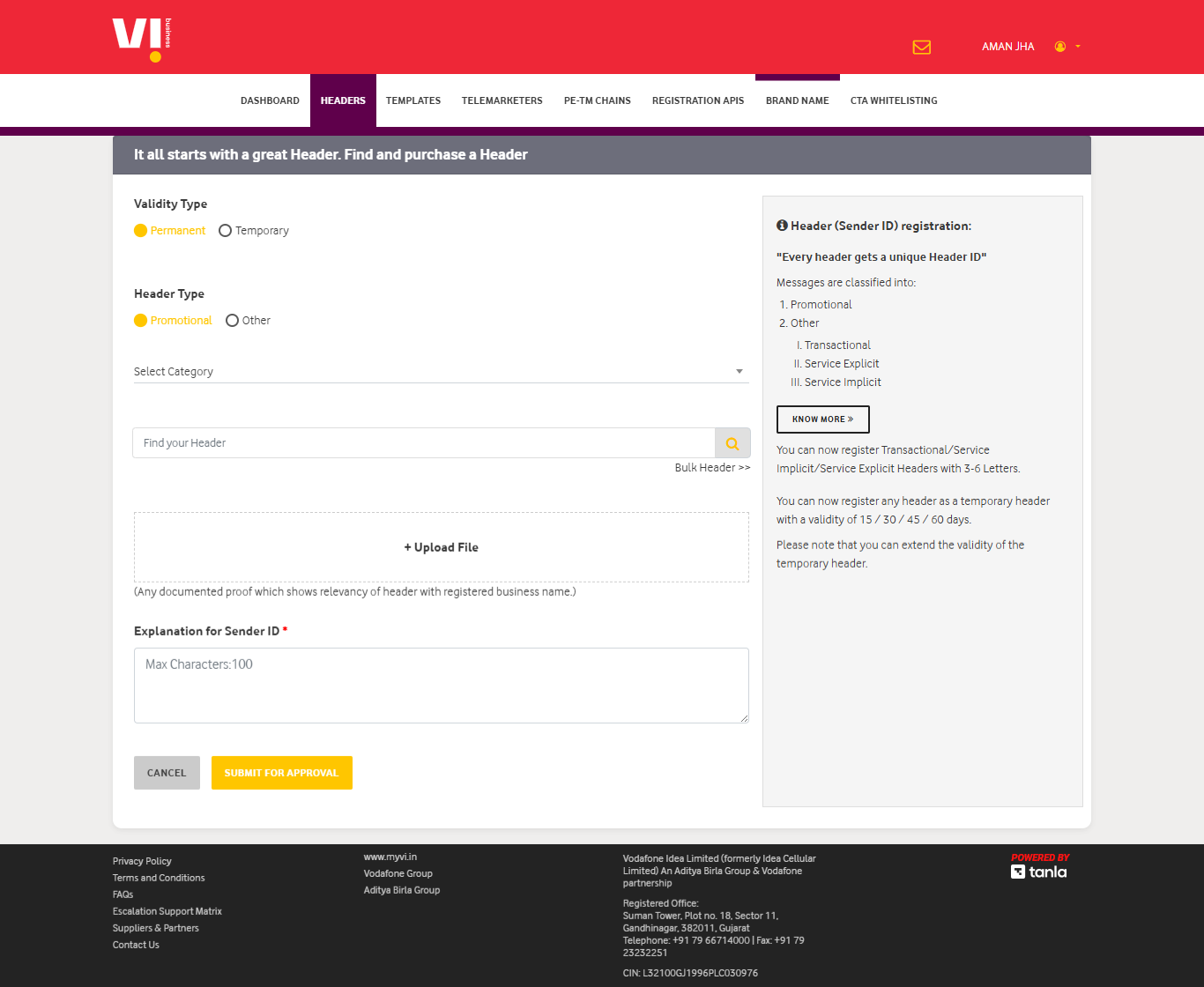
Fill Header Details
Validity Type
- Permanent – Recommended for long-term business messaging
- Temporary – Select only for short-term use and enter validity days
Header Type
Choose the type based on the message content:
- Promotional
- Used for marketing messages
- Requires a 6-digit numeric sender ID
- Example: 349343
- Used for marketing messages
- Other (Alphanumeric Sender ID)
- Transactional – Banking, OTPs, account alerts
- Service Implicit – Notifications, alerts, reminders
- Service Explicit – Messages sent after user consent
- Example: SBICRD
- Transactional – Banking, OTPs, account alerts
Select category
Choose the category that best matches your business domain:
a) Banking/Insurance/Financial products/ credit cards. Ex: 123890, 154987
b) Real Estate. Ex: 234567, 264789
c) Education Ex: 397134, 321456
d) Health Ex: 467931, 444654
e) Consumer goods and automobiles Ex: 582974, 564123
f) Communication/Broadcasting / Entertainment/IT Ex: 631469, 693147
g) Tourism and Leisure Ex: 789456, 714369
h) Food and Beverages Ex: 896321, 816934
i) Others – Category that doesn’t appear in 1-8 Ex: 012389, 098654
Find Your Header
- Enter your desired Sender ID
- Click Check Availability
- If unavailable, try a different header name
Proceed only when the header is available

Ex. An available header

Upload Document
Upload any document that clearly links the business name with the Sender ID, such as GST Certificate, PAN Card, Trademark Certificate, Website Screenshot / About Page etc.
Explanation for Sender ID
Provide a 2–3 line explanation explaining:
- The relevance of the Sender ID
- Its connection with the business name
Click Submit for Approval
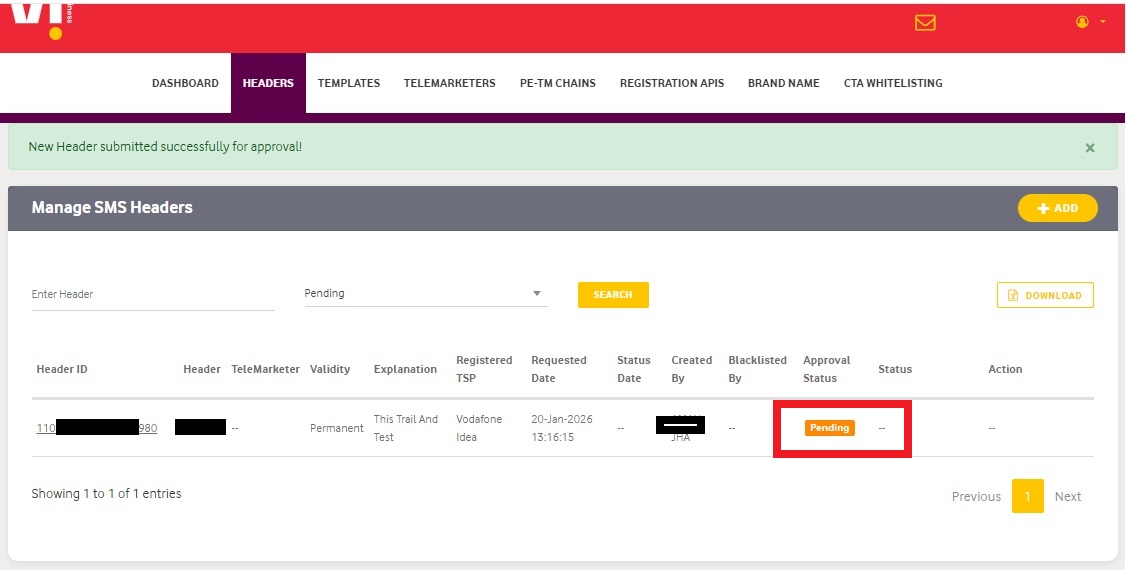
Header status will appear as Pending.
Approval usually takes a few minutes to 1 working day.
Step 3: Content Template Registration
After your Header/Sender ID is approved, proceed to register message templates.
Navigate to Templates
Go to TEMPLATES → CONTENT TEMPLATES
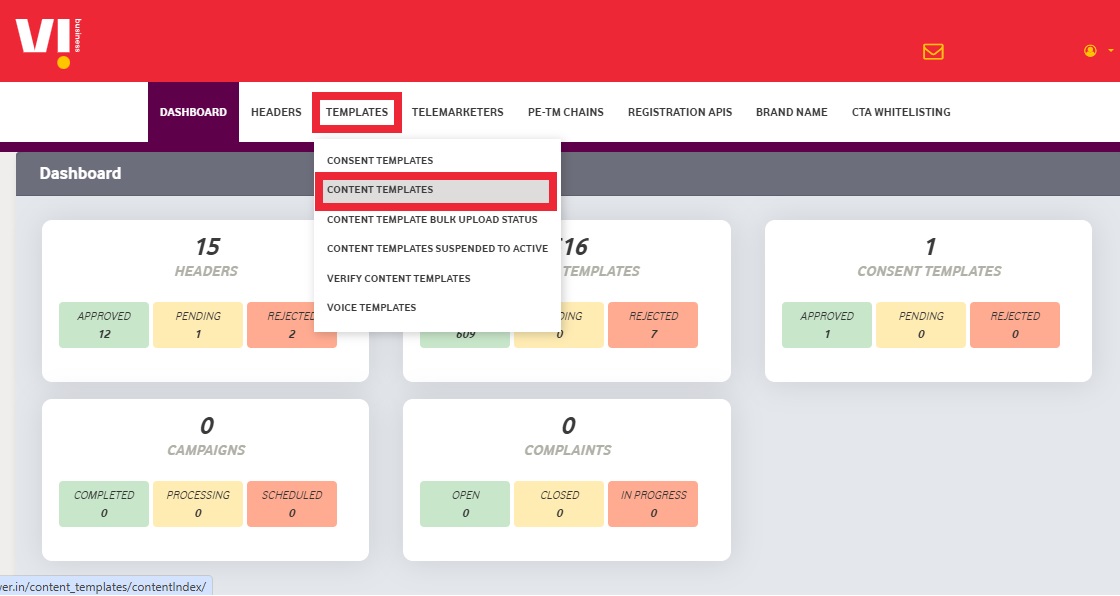
Click on the +Add
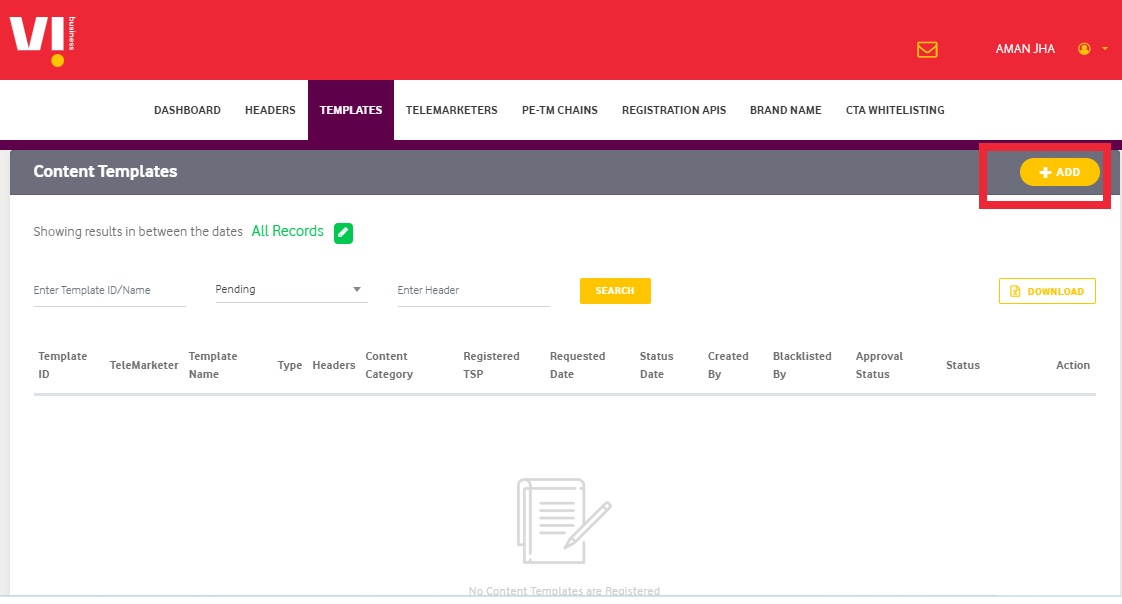
Fill in all the details of the Content template.
Template Type
Select the option that suits the message content.
Promotional – Marketing content that will only be sent using the numeric Sender ID.
Transactional – A type of messaging that’s centered around customer transactions(banking related).
Others/Service – further divided into
- Service implicit – OTPs, Notifications, Alerts, Appointments etc.
- Service Explicit – opt-in consent for promotional content, discounts, or marketing messages.
Category
Select the business category relevant to the message.
Header
Select the Sender ID from the dropdown list. After the approvals, only belonging headers can send these templates.
Message Text Type
Select the message type as Text.
Brand Name
Write the brand name in the text field and choose the Brand name.
Template Type
Single: choose if you want approval for a single template.
Bulk: choose if you want approval for multiple templates at once.
Template Name: write the template name to identify the content template.
Template Message
Copy and paste the message content into the text field. Click on the “Insert Variable” to insert the variable within the text message.
Preview message
Click on the Preview to see the message sample in the dummy phone available in the dashboard.
Finally, Click on the Submit to send template for approval.
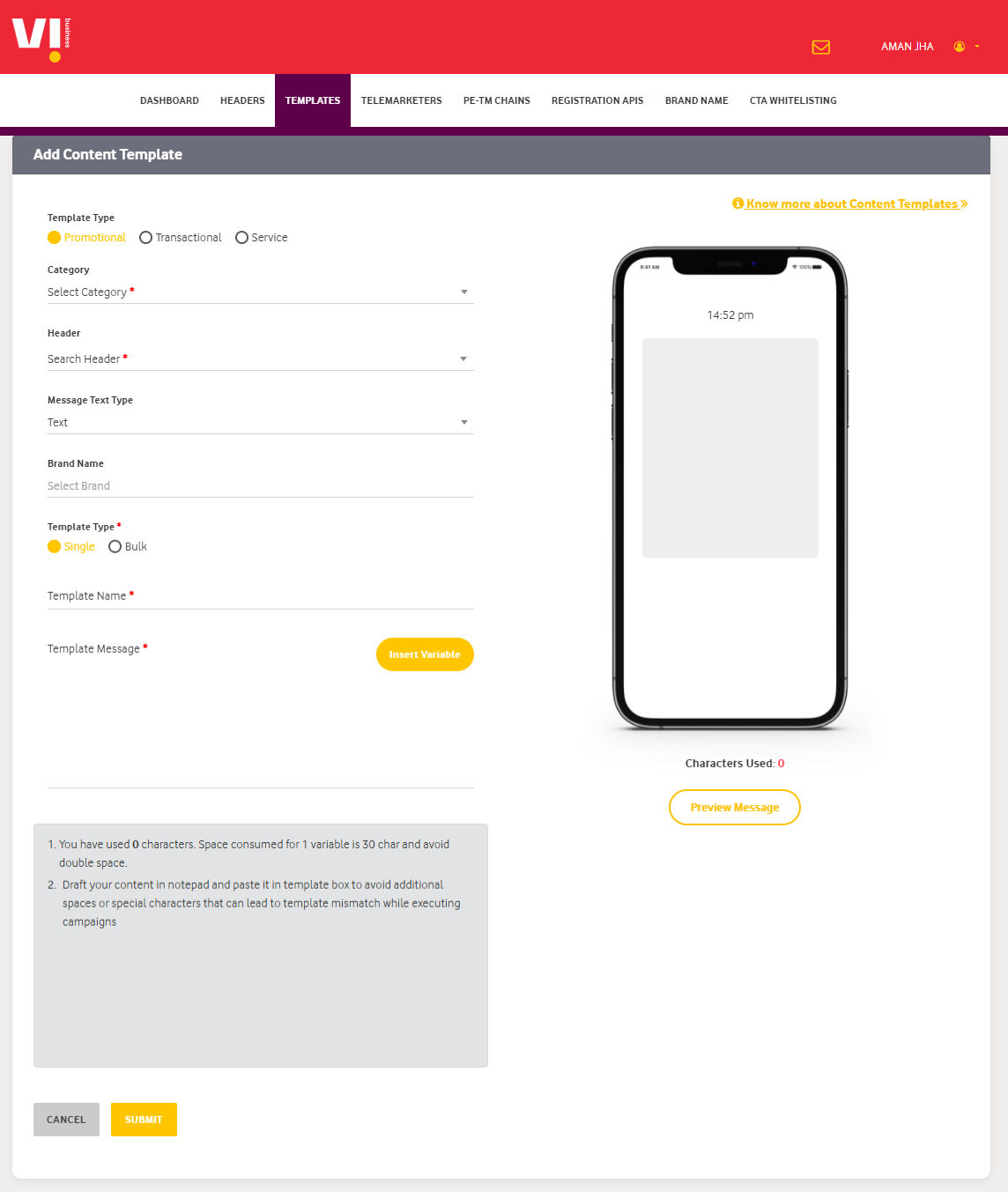
This is all for the template message approval in the Vilpower(Vodafone-idea) DLT Portal.
Step 4: PE-TM Chain Binding
PE–TM Chain Binding is mandatory to send SMS in India. Without this step, messages will not be delivered.
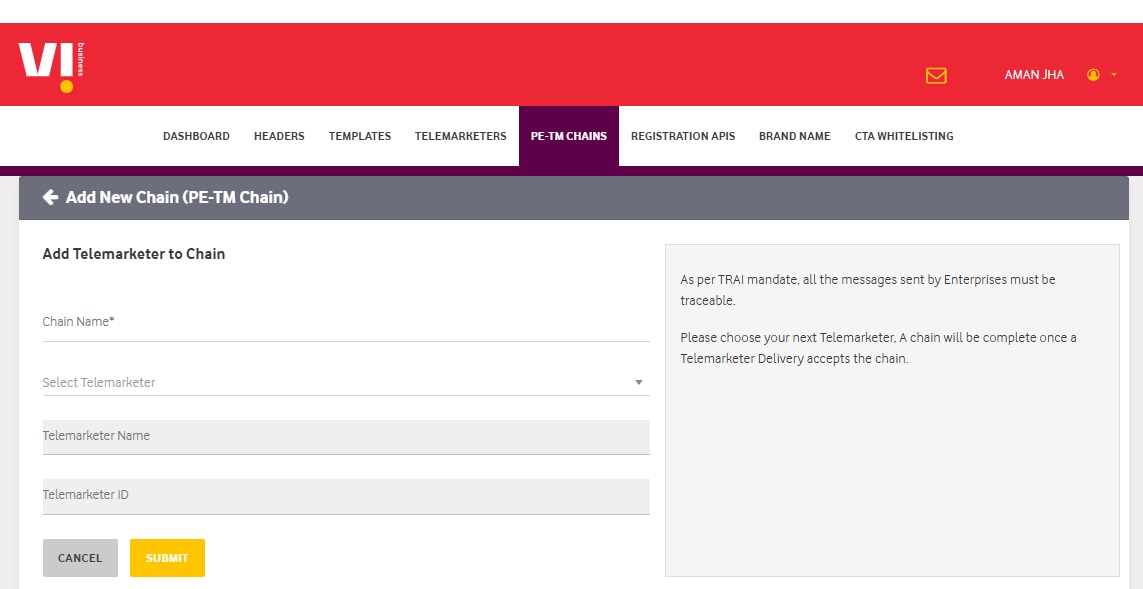
Navigate to Chain Binding
Click PE–TM Chain from the dashboard menu
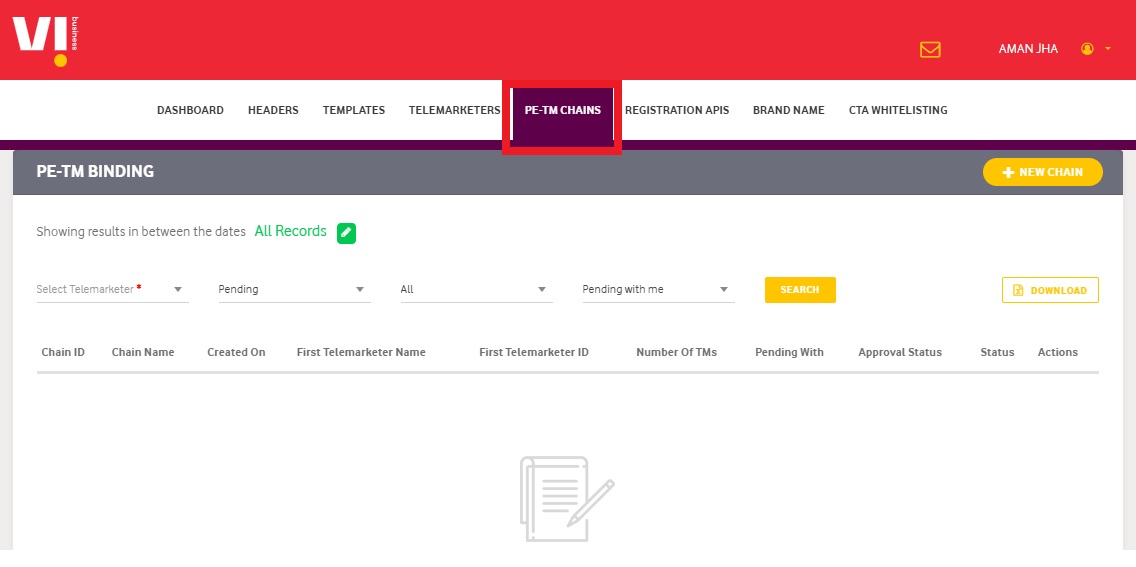
Click on the +New Chain
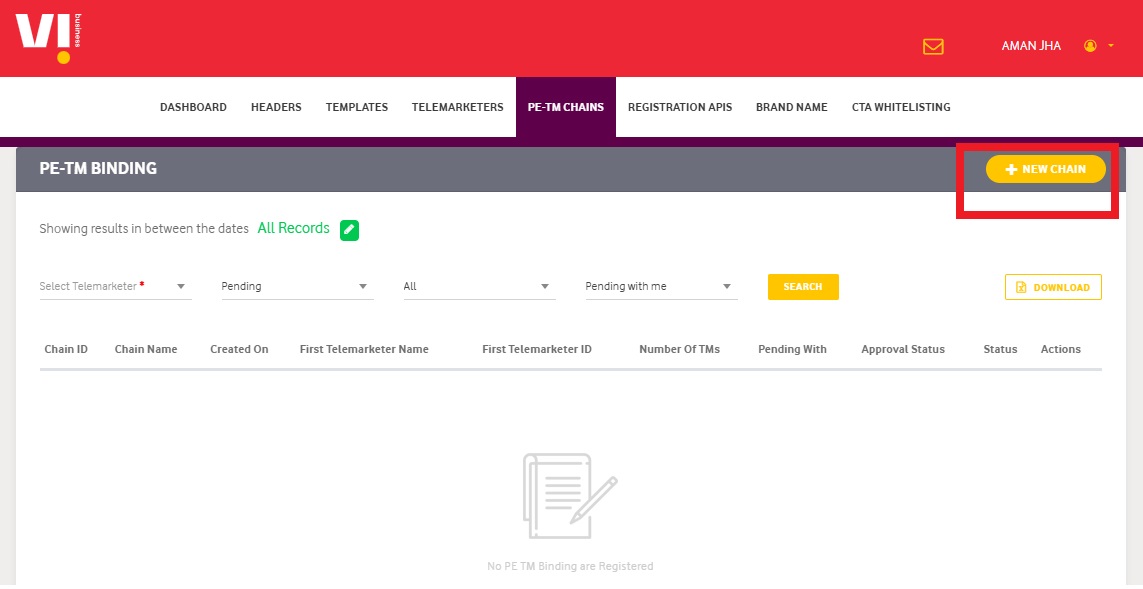
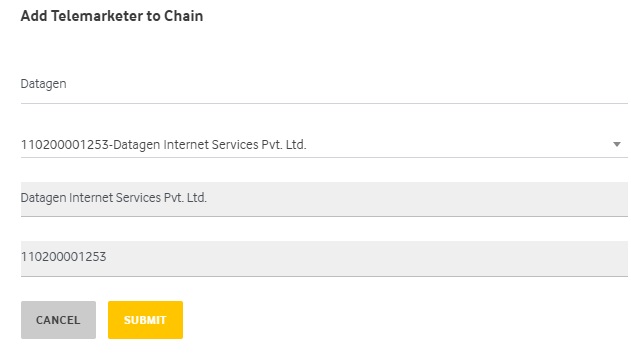
Chain Name: Enter a meaningful name. Use your business name for clarity
Select Telemarketer:
Enter Telemarketer ID: 110200001253
Telemarketer Name: Datagen Internet Services Pvt. Ltd.
Note: Authkey is a product of Datagen Internet Services Pvt. Ltd.
Verify Telemarketer details
Click SUBMIT
Approval & Status
- The request is sent to the Telemarketer
- Contact Authkey Support / Account Manager for faster approval
This completes the Vodafone-Idea (Vilpower) DLT registration process.
If you face any issues during Vi DLT registration, Authkey’s support team will help you at every step—from entity signup to live SMS delivery.
Once completed, add your DLT details to the Authkey Dashboard and start sending compliant business messages.
 78
78
 3
3