How to Add SMS Template in Authkey Dashboard?
Add SMS Content Template in Authkey Dashboard.
Log in to your Authkey dashboard.
Make sure your Entity ID is already submitted.
If not, click on “Add Entity ID” and complete the process first.
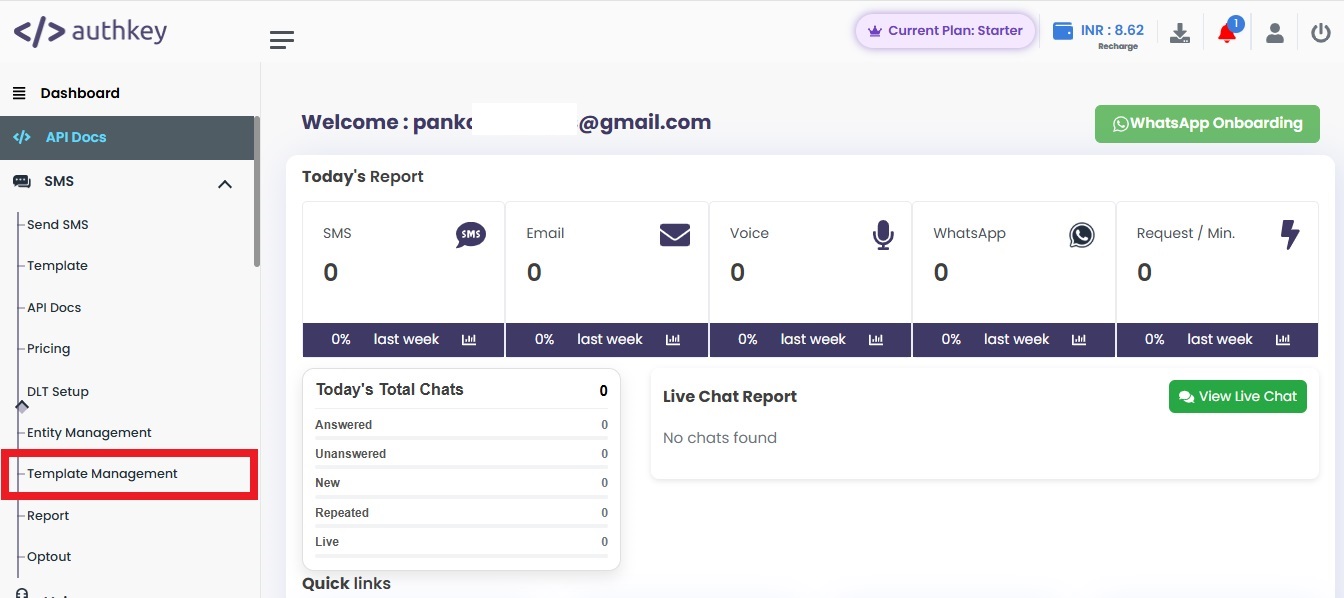
Navigate to SMS → DLT Setup → Template Management
Now click on “+ Add DLT Template”.
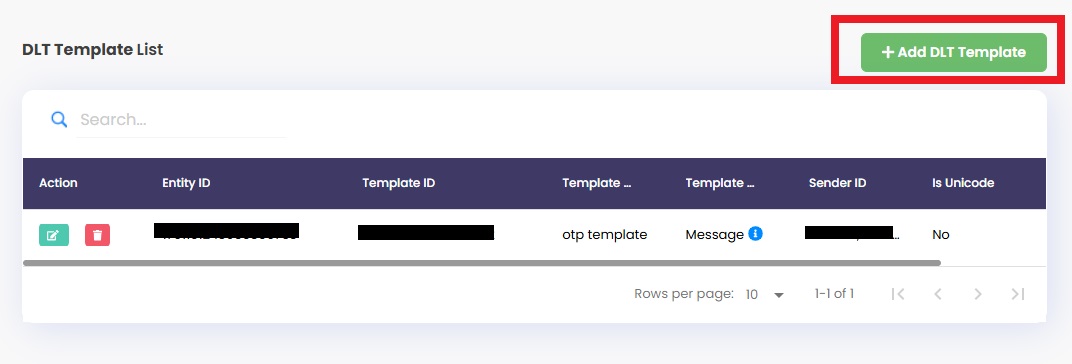
You will see two options to add SMS content templates:
Option 1: Bulk Templates Upload (For Multiple Templates)
This option is best if you want to upload many templates at once.
Select your Entity ID
Click on Download Sample File
Open the file and fill in the following details:
- Template ID
- Telemarketer
- Template Name
- Type
- Header
- Category
- Registered DLT
- Requested On
- Status Date
- Approval Status
- Status
- Template Message
- Consent Type
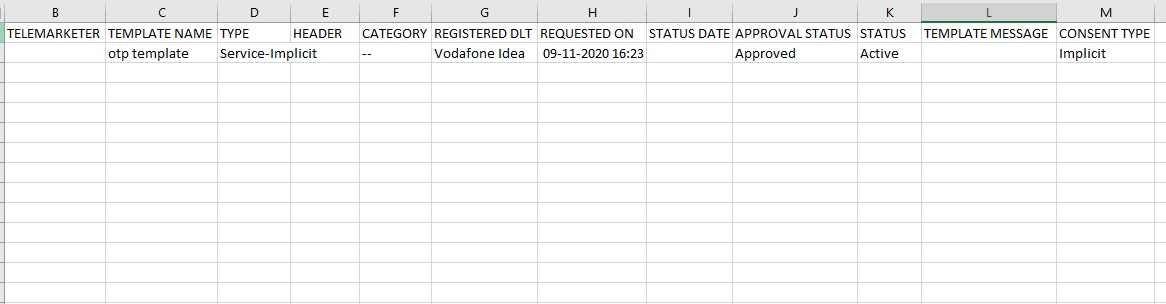
Save the file after entering all details
Click on Choose File, Click Upload
This is the easiest way to add multiple SMS templates in one go.
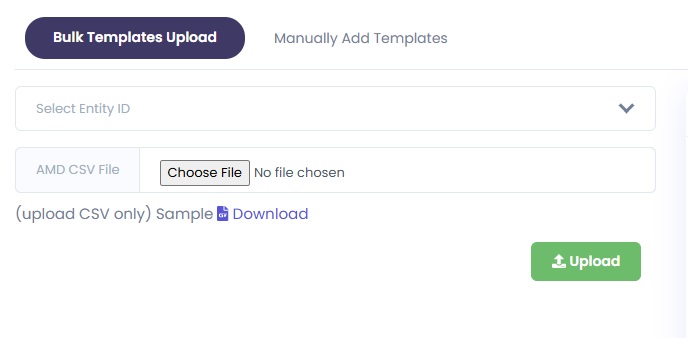
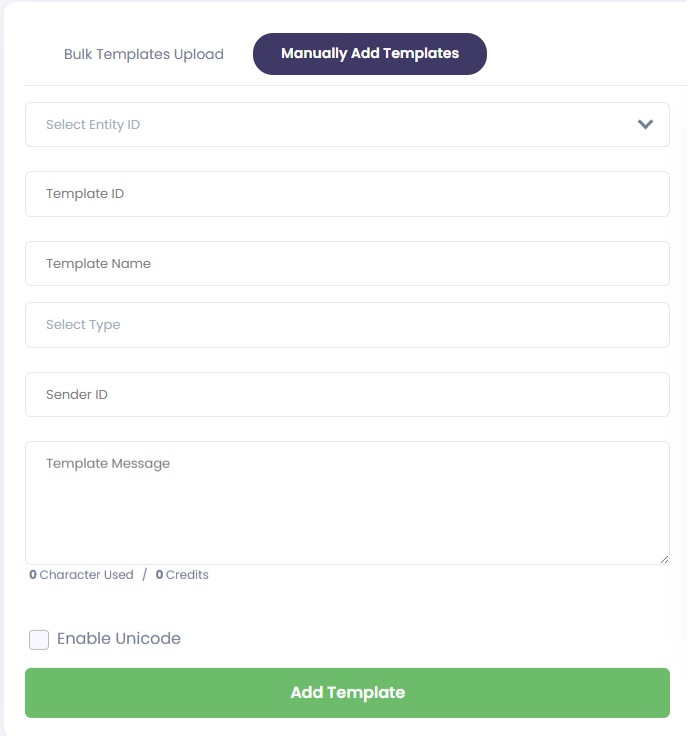
Option 2: Manually Add Templates (For Single Template)
Use this option if you want to upload only one SMS template.
Click on “Manually Add Templates”
Select your Entity ID
Enter the Template ID received from the DLT portal
Select the Service Type (Implicit or Explicit)
Enter the Sender ID linked to the template
Copy and paste the message template content
Enable Unicode if your message is in a language other than English
Click Add Template to submit
Once your SMS content template is added and approved, you can start sending compliant SMS campaigns in India through the Authkey platform without any delivery issues.
Note: To add a template in the Authkey dashboard, your SMS content template must be pre-approved on the DLT portal. Only DLT-approved templates can be added and used for sending SMS in India.