How to add your DLT details to the Authkey Dashboard?
After successfully completing your DLT registration (as a Principal Entity, with Sender ID and template approvals) on your telecom operator’s DLT portal, you must add those DLT details in the Authkey Dashboard to start sending text messages.
Once added and verified, your account will be enabled for transactional, promotional, and OTP SMS delivery.
Login into your Authkey Account.
Click on the SMS → DLT Setup → Entity Management
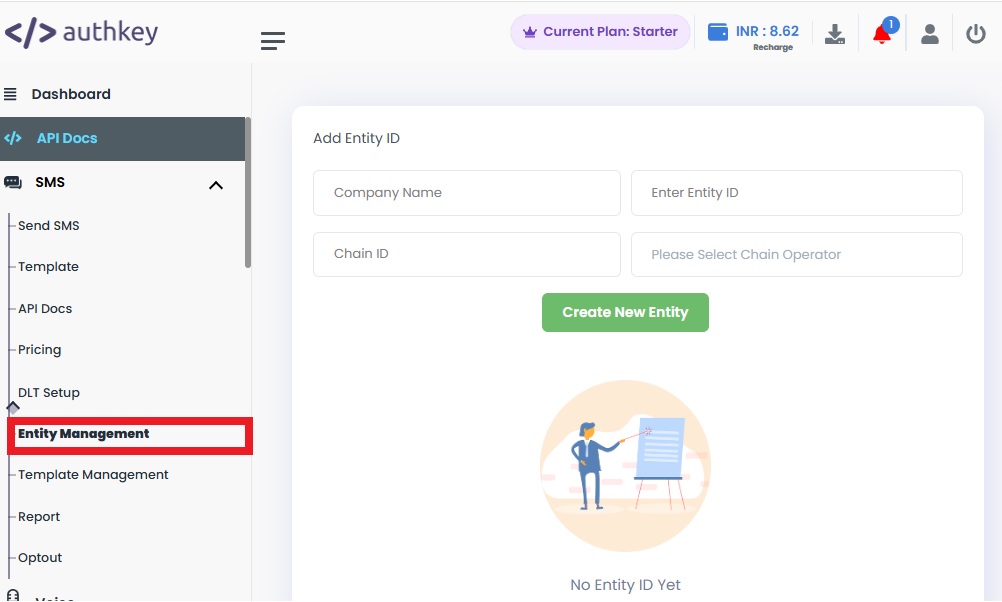
Add Entity ID in Authkey Dashboard
In the Add Entity ID section, fill in the required details carefully:
- Company Name – Enter the company name exactly as mentioned in your DLT registration documents.
- Entity ID – Enter your approved Entity ID from the DLT portal.
- Chain ID – Enter the Chain ID generated on the DLT portal.
- Operator – Select the telecom operator where you completed your DLT registration from the dropdown list.
After entering all the details, click on “Create New Entity.”
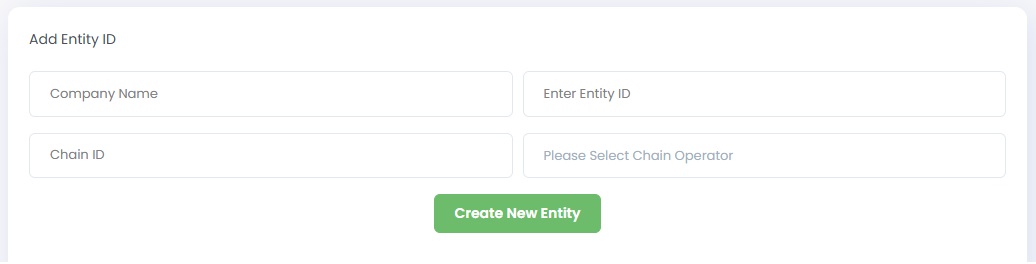
DLT details have now been successfully added to the Authkey Portal.
The next step is to Add your Content Template so you can start sending messages.