How to Create Authentication OTP WhatsApp Template Messages?
Authentication templates are used to send secure OTPs (One-Time Passwords), login codes and account verification messages through the official WhatsApp Business API.
These messages fall under the Authentication category and are designed specifically for verification and security use cases.
Step 1: Login & Navigate
Log in to your Authkey account.
From the left sidebar, navigate to:
WhatsApp → WhatsApp Template
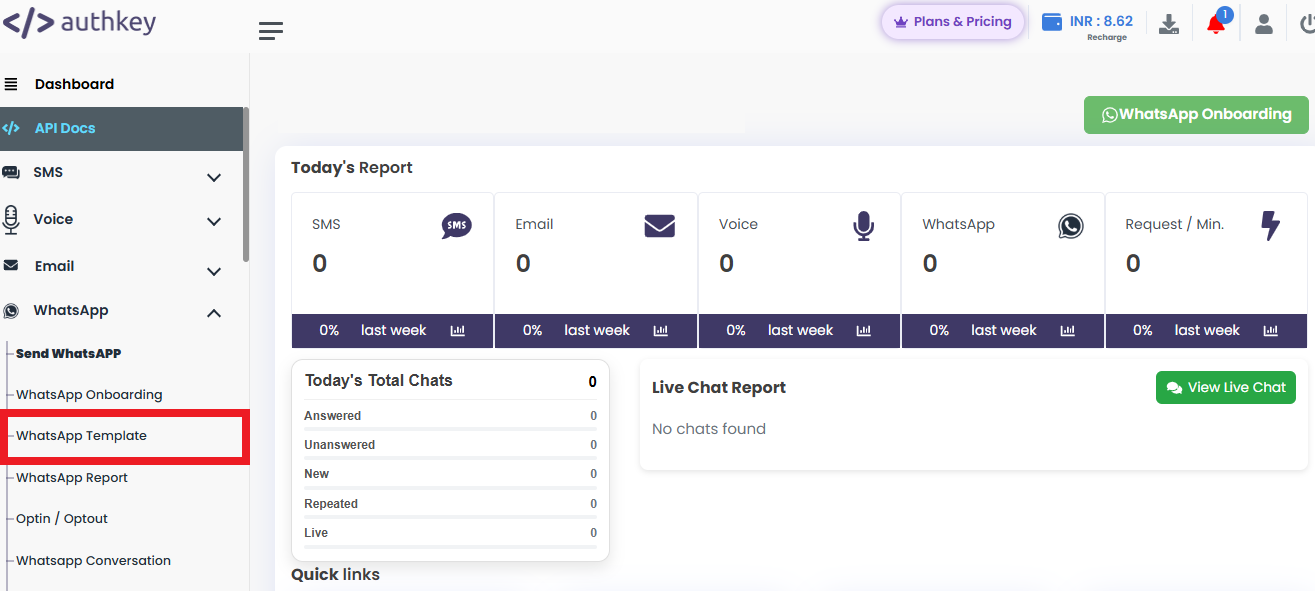
Click on the “Create Authentication Template”
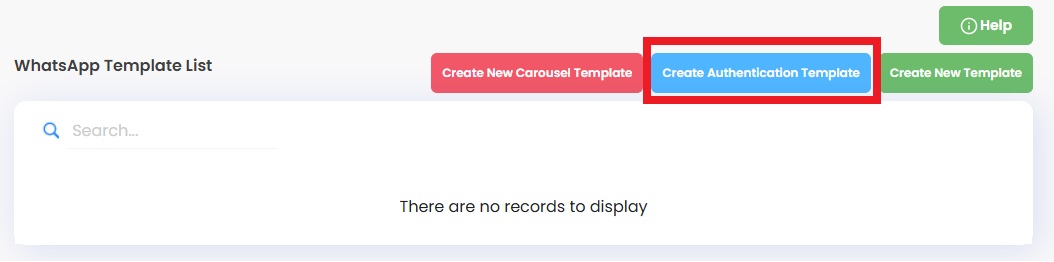
Create Template
Choose the connected WhatsApp Business account number from the dropdown list.
Provide a unique and identifiable template name (for example: AuthOTPTemp). Avoid spaces and special characters.
Choose the language for your template. By default, it is set to English, but you can select other supported languages if needed.
By default, the category is selected as Authentication.
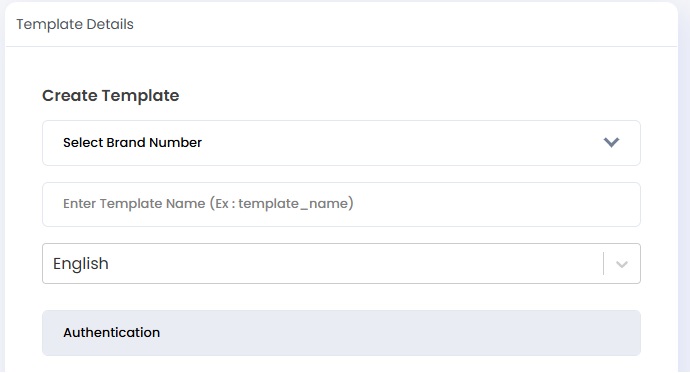
Code Delivery Setup
Choose how the verification code will be delivered from WhatsApp to your app.
Zero-Tap Auto-Fill (Recommended)
This is the easiest and most seamless option for customers.
- The OTP is automatically sent from WhatsApp to your app.
- No user action (no button tap) is required.
- Works when your app supports auto-fill integration.
One-Tap Auto-Fill
- The user must tap a button inside WhatsApp.
- The OTP is then sent to your app automatically.
- If auto-fill isn’t supported, a Copy Code message will be shown as fallback.
Copy Code
This is the most basic authentication setup.
- The user manually copies the OTP from WhatsApp.
- They paste it into your app or website.
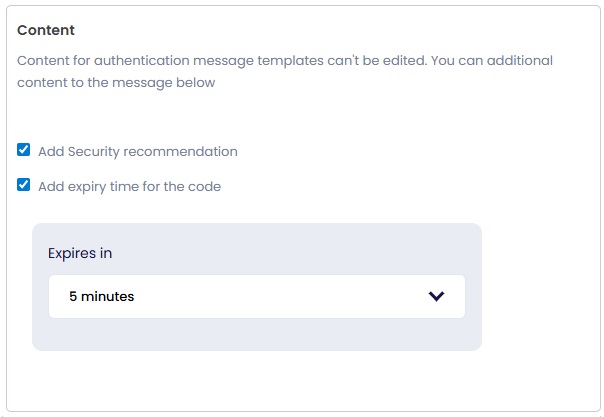
Content
For Authentication templates in the WhatsApp Business API, the message content format is fixed.
You cannot modify the core authentication message text, as it follows strict security and compliance guidelines set by Meta.
Add Security Recommendation
You have the option to include a security notice in the message. Enable the checkbox to add the following line:
“For your security, do not share this code. This code expires in 5 minutes.”
Adding this recommendation is highly advised, as it improves user awareness and prevents fraud or misuse.
Add Expiry Time
You can define the expiry duration for the one-time code. Set the time limit (e.g., 5 minutes, 10 minutes, etc.).
Save or Submit Template for Approval
Once you have completed all the template details, you can choose one of the following options:
Click on “Save Draft”
This will save the template in your dashboard so you can edit or review it later.
The template will not be submitted to Meta for approval at this stage.
Click on “Save & Send for Approval”
This will immediately submit your message template to Meta for review and approval.
Once approved, you can start using it for authentication message through the Authkey’s WhatsApp Business API.
 48
48
 3
3