How to Send Bulk Messages on WhatsApp? | WhatsApp Marketing
Sending bulk WhatsApp messages allows businesses to reach thousands of customers instantly for promotions, updates, reminders and notifications.
Here’s a complete step-by-step guide to send bulk WhatsApp campaigns.
Step 1: Get WhatsApp Business API Access
Signup on Authkey
Create a new account or log in to your existing account.
Start WhatsApp Onboarding
Get Official WhatsApp Business API in 10 minutes.
If you already have a WhatsApp Business account with Authkey, skip this step.
Step 2: Create & Get Template Approved
Authkey requires pre-approved message templates for outbound bulk messaging.
Step by Step Guide to Create & Get Template Approved
- Create WhatsApp Marketing Template Messages
- Create Utility WhatsApp Template messages
- Create Authentication OTP WhatsApp Template Messages
- Create Message Templates(Carousel) for Your WhatsApp Marketing
Step 3: Upload Contact List
Prepare your contact database:
Upload contacts via:
- Upload CSV file
- Manual entry
Step by Step Guide to Create / Upload Contact List for Campaigns
Step 4: Create a Campaign
Navigate to Campaign → Create Campaign in your Authkey Dashboard.
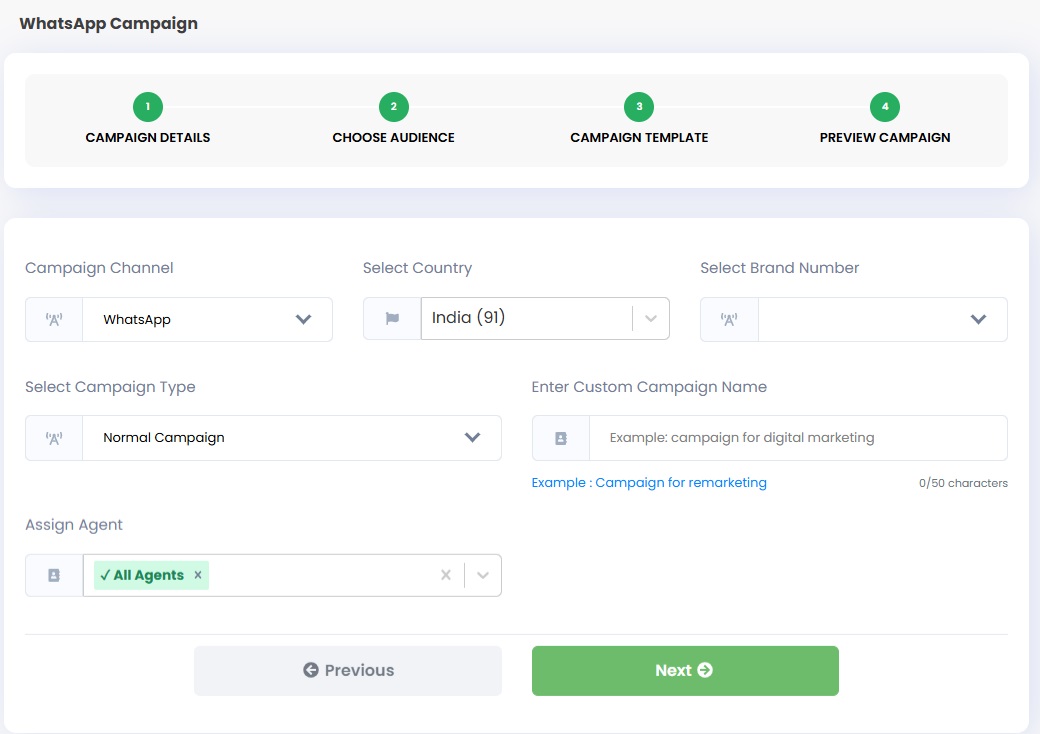
Campaign Details
Fill in the Campaign Details
Complete the following fields carefully:
- Choose WhatsApp as your Campaign channel.
- Select the country code based on the country you are running the campaign in.
- For India, select 91.
- For India, select 91.
- Choose your onboarded WhatsApp number from the dropdown list.
- Campaign Type: Select Normal Campaign.
- Campaign Name: Provide a clear and identifiable name for your campaign (for example: Holi_Promo_2026).
- Assign Agent: Since WhatsApp campaigns support two-way communication, select the agent who will handle and respond to incoming customer replies.
Once all details are filled correctly, click Next to proceed to the next step.
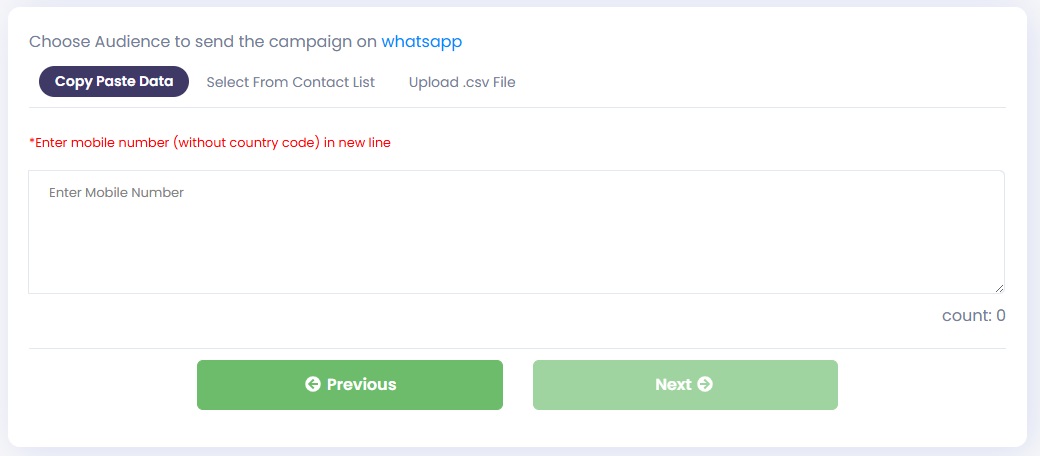
Choose Audience
You can add your audience using any of the following methods:
Copy & Paste Numbers: Directly copy and paste the mobile numbers into the provided field.
Select from Contact List: Choose an existing contact list from the dropdown menu.
Upload CSV File: Upload a CSV file containing your contact numbers.
Make sure the file format matches the required sample format and includes the correct mobile number column.
Once your audience is selected or uploaded successfully, click Next to proceed.
Learn More: How to Create/ Upload Contact List for Campaigns?
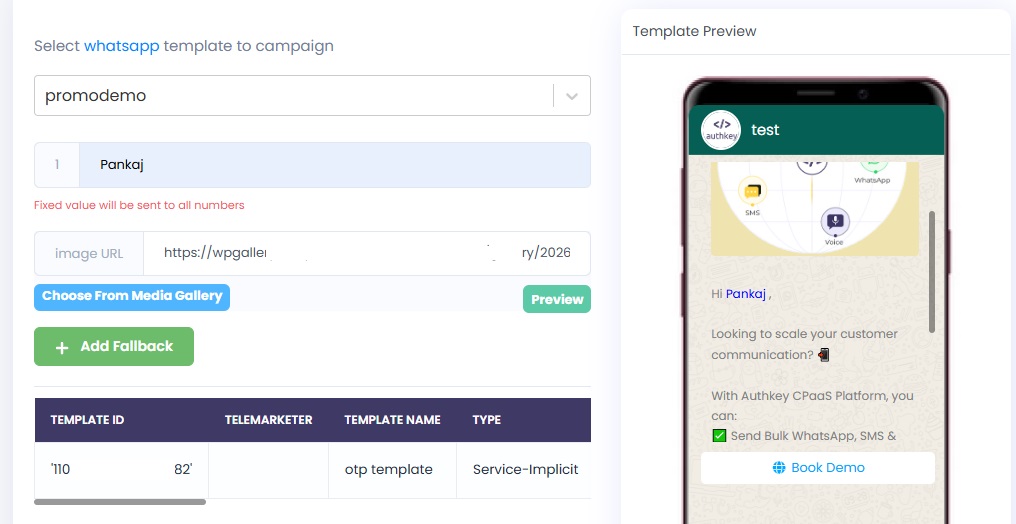
Campaign Template
In this step, you need to select the approved WhatsApp template that will be sent to your audience.
Select Template
- Choose the required WhatsApp template from the dropdown list.
- Only approved templates will appear in the list.
Preview Template
- Review the selected template message in the Preview section.
- Ensure the content, variables ({{1}}, {{2}}, etc.), buttons, and media (if any) are correctly displayed.
Important:
If you have not created or received approval for a template yet, please complete Step 2: Create & Get Template Approved before proceeding with the campaign.
Once the correct template is selected and verified, click Next to continue.
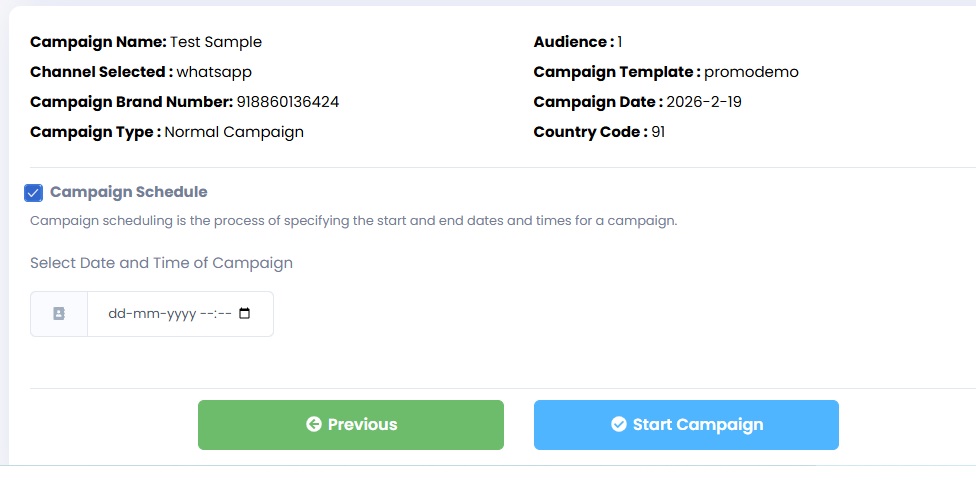
Schedule or Send Instantly
Before launching your campaign, carefully review all the campaign details including channel, audience, template, and assigned agent.
Send Campaign Instantly
If you want to start the campaign immediately:
- Verify all the details are correct.
- Click on Start Campaign.
The campaign will begin processing within seconds.
Schedule a WhatsApp Campaign
If you want to send the campaign later:
- Enable the Campaign Schedule option.
- Select your preferred date and time.
- Click on Start Campaign to confirm the schedule.
Your WhatsApp campaign will automatically start at the scheduled time.
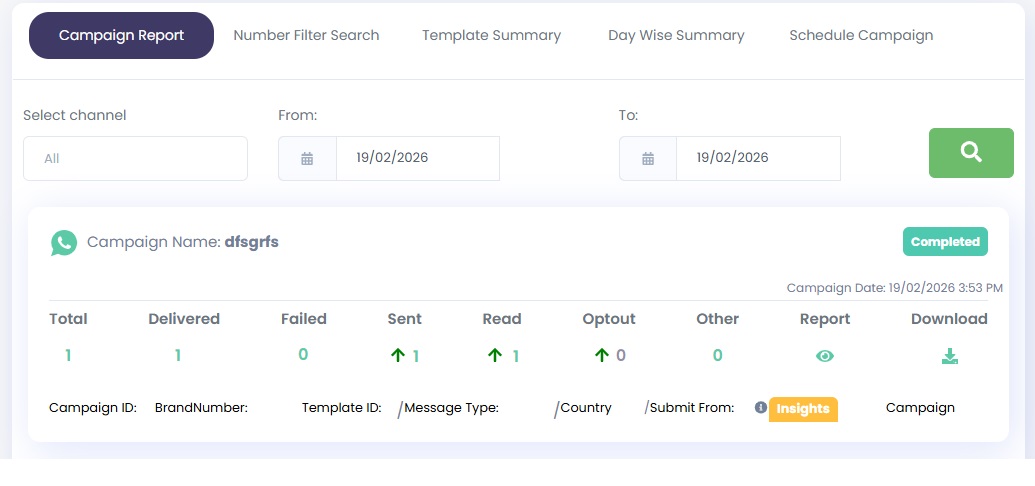
Step 5: Track Campaign Performance
Track the following important insights:
Delivered Messages – Number of messages successfully delivered to recipients.
Read Rate – Percentage of users who opened and read the message.
Click-Through Rate (CTR) – Number of users who clicked on links or CTA buttons.
Replies – Incoming responses from customers (for two-way campaigns).
Failed Messages – Messages that were not delivered due to invalid numbers or other issues.
Download Reports
You can download detailed campaign reports for analysis, record-keeping, or sharing with your team.
Use these analytics insights to:
- Improve targeting
- Optimize message content
- Increase engagement rates
- Refine future WhatsApp campaigns
By using the WhatsApp Business API through Authkey, you can send bulk campaigns, automate communication and increase conversions.