Get WhatsApp Business API In 10 Minutes / WhatsApp Onboarding
Step by Step Process to Onboard official WABA – Live in just 10 minutes!
Step 1: Sign Up on Authkey
- Visit authkey.io
- Create a new account or log in to your existing account.
Step 2: Start WhatsApp Onboarding
- After logging in, go to the Dashboard.
- Navigate to the top-right corner.
- Click on the green “WhatsApp Onboarding” button.
- You will be redirected to the onboarding form.
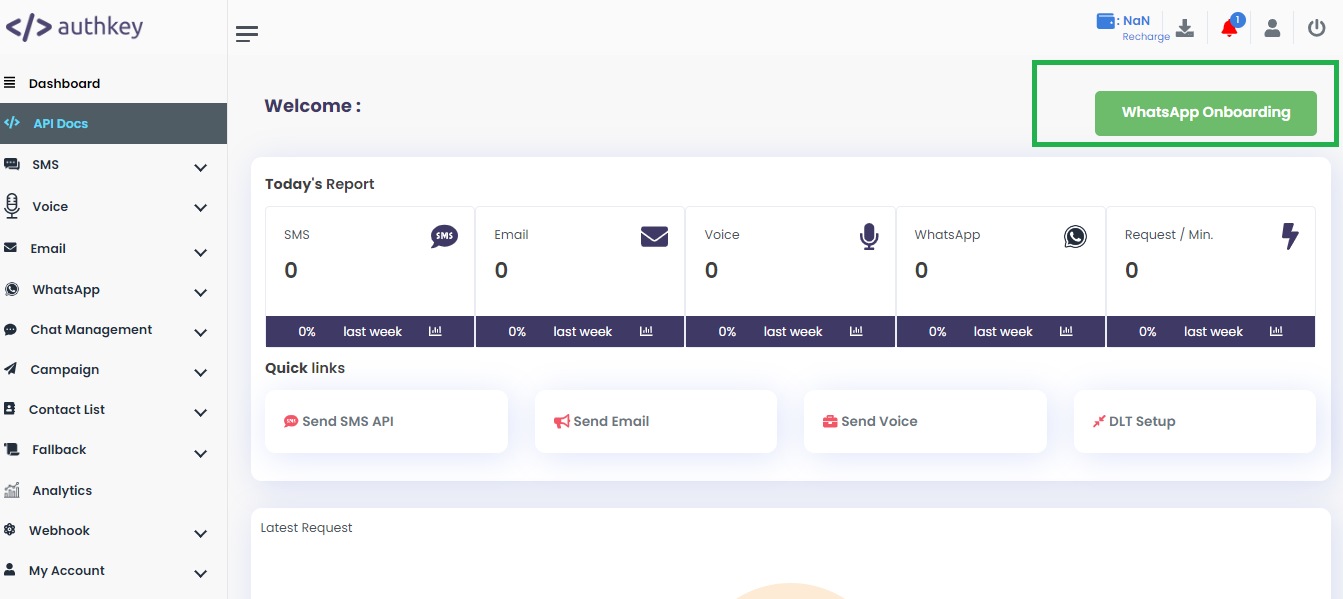
Step 3: Fill in Business Information:
- Company Name – Enter your registered company name.
- Proposed WhatsApp Number – Enter the number you want to use.
- Business Website – Provide your official website URL.
- Business Email – Enter a valid business email address.
- Click “Request Now” to proceed.
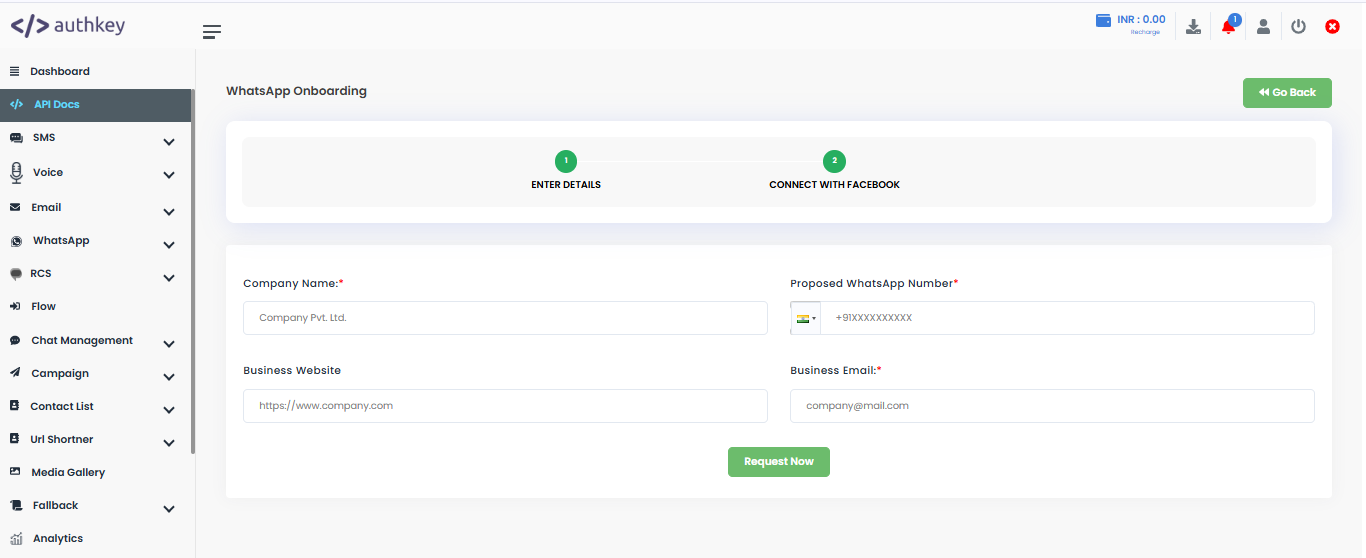
You will now be redirected to connect your account with Meta.
Step 4: Connect with Facebook Account (Embedded Signup)
- You will be redirected to the Meta Platforms onboarding page.
- Click the “Embedded Signup” button.
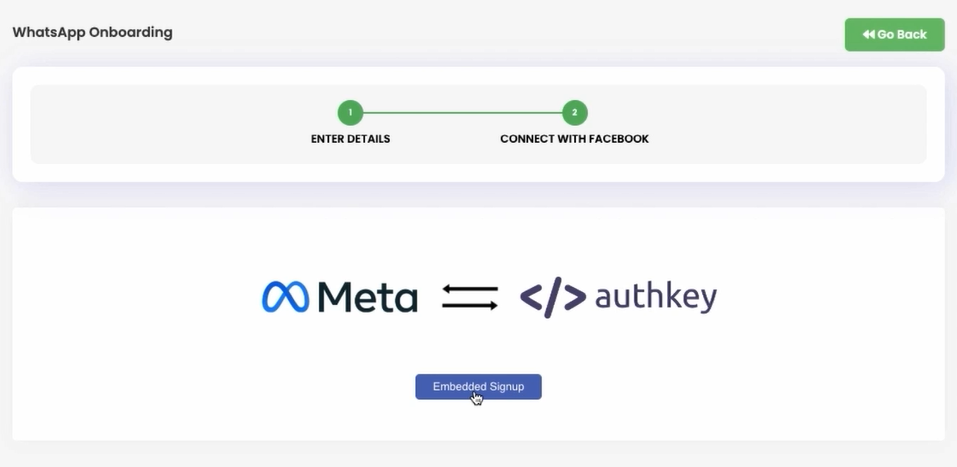
- Log in using your Facebook credentials.
- Ensure the account is connected to your Facebook Business Page.
- Continue using the same Facebook account for authentication.
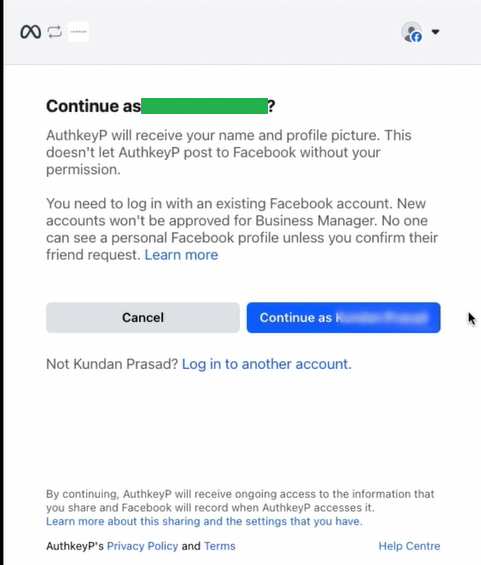
Step 5: Permissions & Account Access
- Click “Get Started”
- Grant required permissions
- Connect your business account to Datagen Internet Service Private Limited (Authkey)
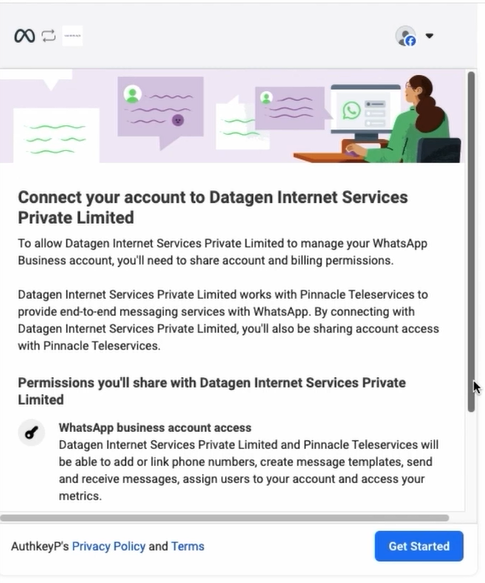
This securely links your business with Meta to enable WhatsApp messaging.
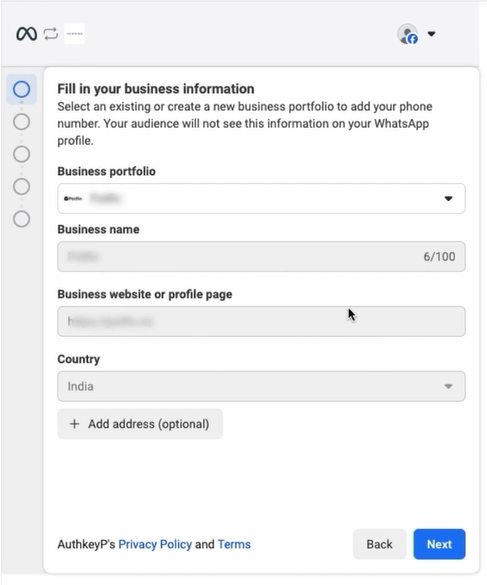
Step 6: Complete Your Business Profile
Enter your official business details:
- Business Portfolio – Select existing or create new.
- Business Name – Enter your official registered name.
- Business Website / Profile Page – Add website or Facebook page.
- Country – Confirm auto-filled country.
- Address (Optional) – Enter physical business address if applicable.
Click “Next” to continue.
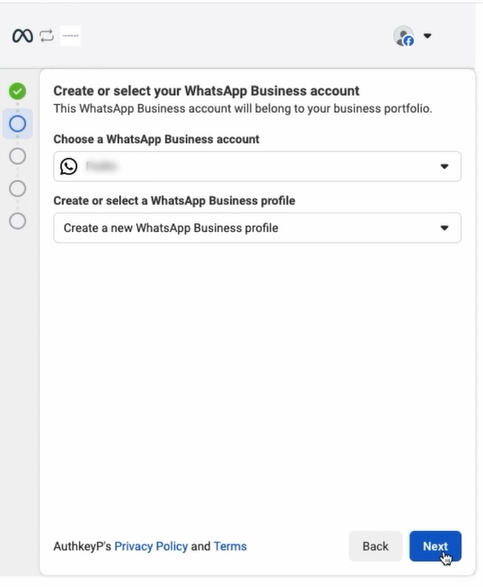
Step 7: Set Up WhatsApp Business Profile
1. Select WhatsApp Business Account
- Choose an existing WhatsApp Business Account
OR - Create a new one if not available
Click “Next”
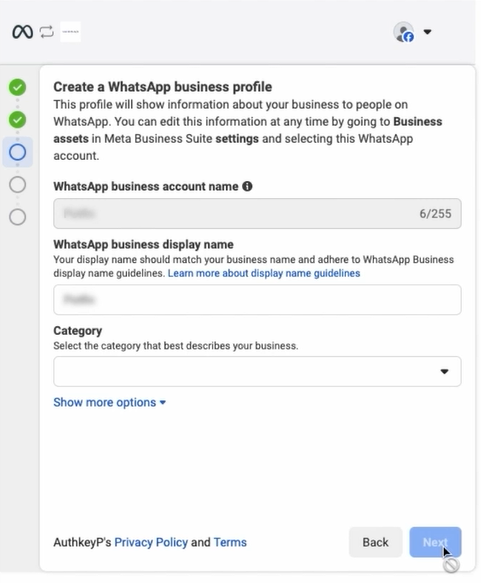
2. Configure Business Profile Details
Fill in the following:
- WhatsApp Business Account Name
(Internal reference name) - WhatsApp Business Display Name
(Customer-visible name – must follow Meta guidelines) - Category
(Select appropriate business category) - (Optional) Click “Show More Options” to add:
- Business description
- Business email
Click “Next”
Step 8: Verify Your Phone Number
Enter a phone number that:
- Is not already linked to another WhatsApp Business API
- Can receive SMS or voice calls
Choose verification method:
- SMS
- Voice Call
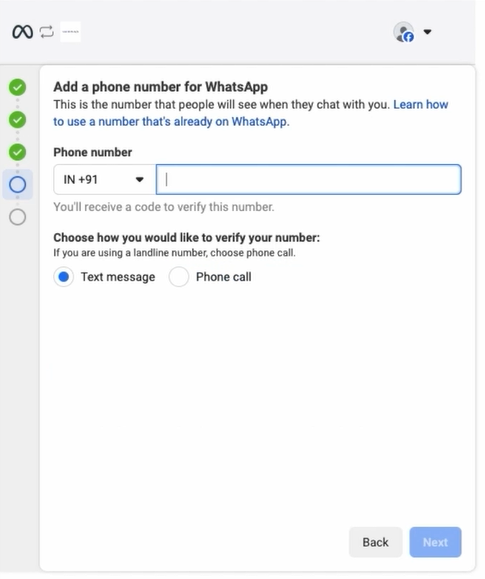
You will receive a 6-digit verification code.
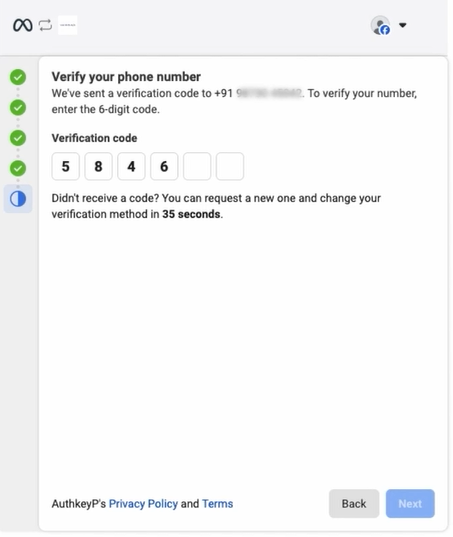
Enter the code and click “Next”.
Verification completes your WhatsApp Business setup.
Step 8: You’re Ready to Send!
Congratulations 🎉
Your onboarding is complete!
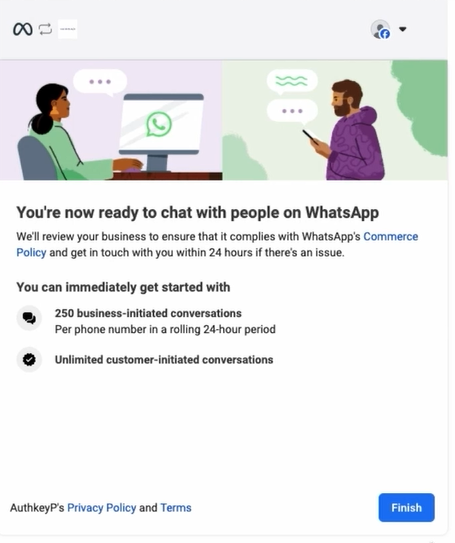
You can now:
- Send automated notifications
- Provide customer support
- Launch marketing campaigns
- Engage customers instantly
Account Status & Review Process
- Meta will review your business for compliance with WhatsApp Commerce Policy.
- Account Status will initially show as Pending.
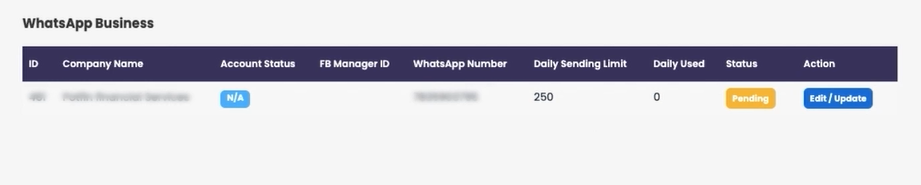
- It automatically updates to Approved after review.
- Meta provides a free daily limit of 250 business-initiated messages initially.
Conclusion
Onboarding with Authkey is fast, simple, and fully guided. In just 10 minutes, you can activate your official WhatsApp Business API account—no technical hassle, no delays.
Read more: Detailed Guide on WhatsApp Onboarding.
Start today and unlock the power of WhatsApp for your business
 89
89
 6
6