How to Create WhatsApp Marketing Template Messages?
Marketing templates allow businesses to send promotional messages such as offers, discounts, product launches, festive campaigns, and announcements using the official WhatsApp Business API.
Login & Navigate
Log in to your Authkey account.
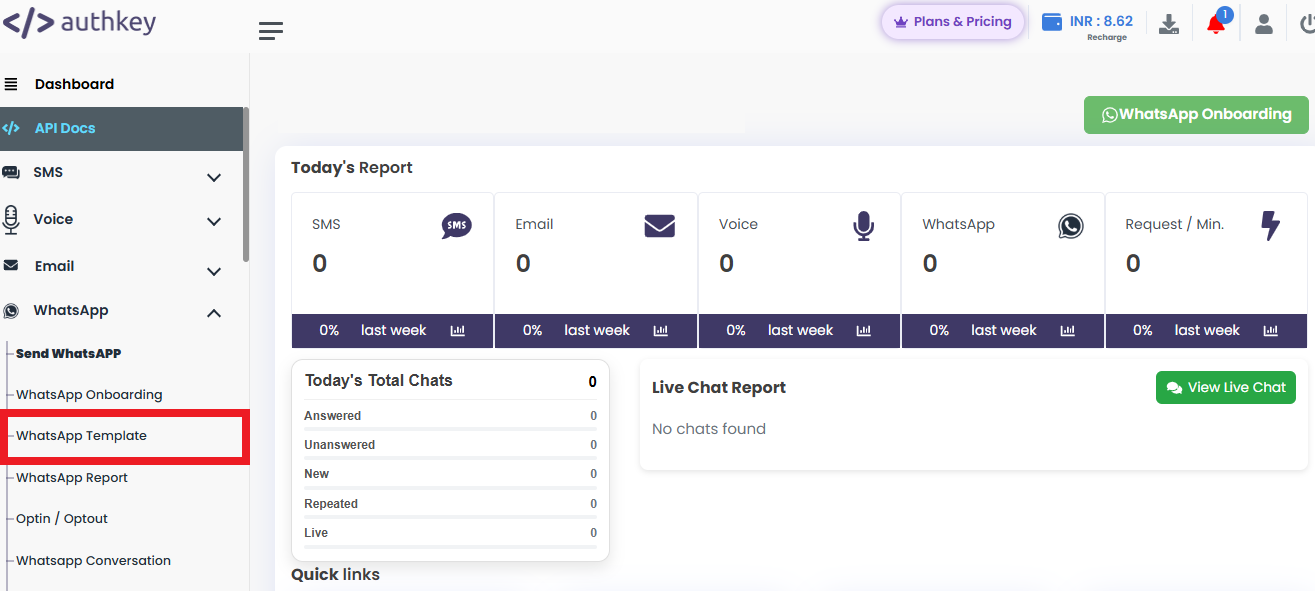
From the left sidebar, navigate to:
WhatsApp → WhatsApp Template
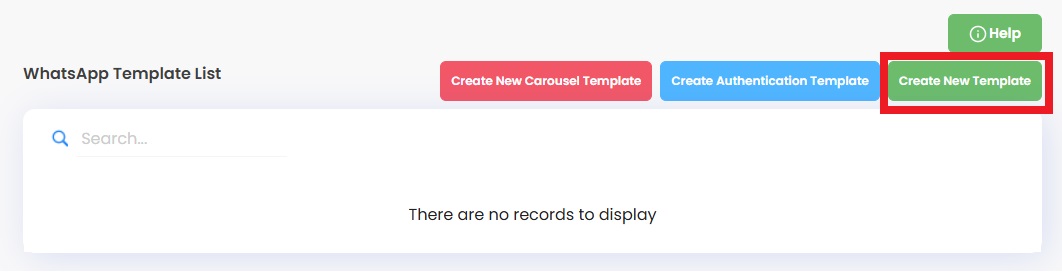
Click on the “Create New Template”
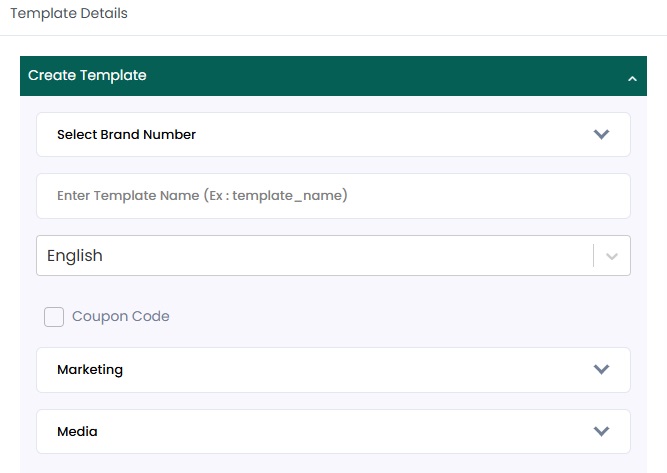
Create Template
Choose the connected WhatsApp Business account number from the dropdown list.
Provide a unique and identifiable template name (for example: MarketingCamp2). Avoid spaces and special characters.
Choose the language for your template. By default, it is set to English, but you can select other supported languages if needed.
Select Template Category
- Choose Account Type / Category: Marketing.
This ensures the message is treated as a Promotional service message (promotional).
Select Template Type
- Select Text if you want to send a plain text message
- Select Media if you want to include an image, PDF, or document.
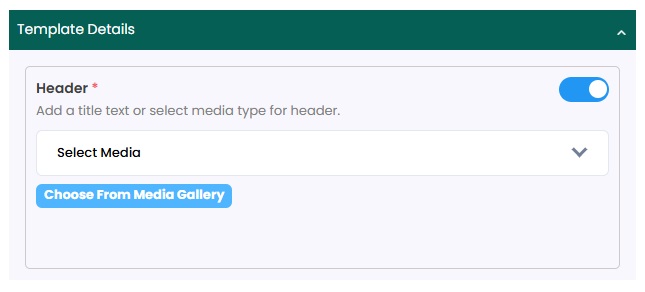
If Template Type selected as Media.
Enable the Header toggle to display the media at the top of the message.
Select the Media Type as Image/Video/ Document (Doc / PDF)
Click on “Choose From Media Gallery” to upload or select an existing media file from your dashboard.
If Template Type selected as Text. Follow from here.
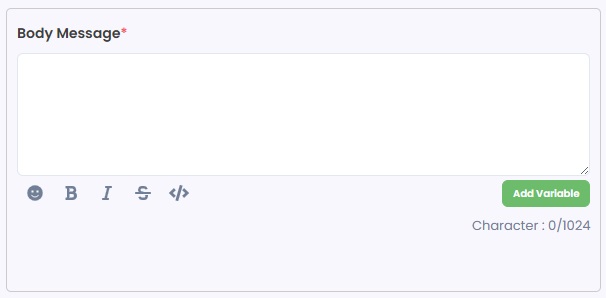
Body Message
Enter your message content in the text field. You can personalize the message by adding dynamic variables such as customer name, dates, order numbers, discount percentages, or product details.
Use variables in this format:
{{1}}, {{2}}, {{3}}
Example:
- {{1}} – Customer Name
- {{2}} – Product Name
- {{3}} – Offer Expiry Date
Buttons and Footer
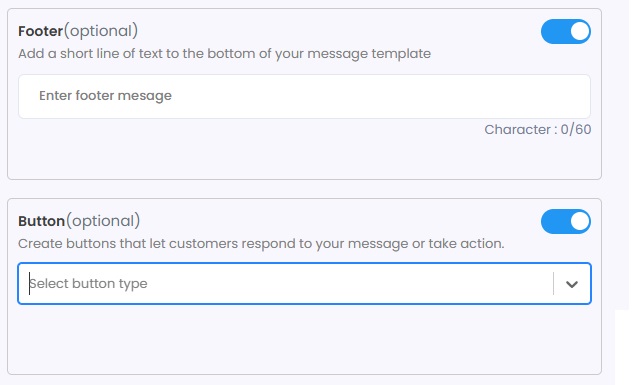
You can add buttons at the end of your WhatsApp message to increase engagement and make it easy for customers to take action.
There are two types of buttons you can include:
Call to Action (CTA)
This button allows users to perform a direct action such as:
- Calling a phone number
- Visiting a website link
- Viewing an offer page
Example:
- Shop Now → Website URL
- Call Us → Business Phone Number
Quick Reply
This button allows customers to respond instantly with a predefined reply text.
Example:
- “Book Now”
- “View Catalog”
- “Talk to Support”
Quick replies help start conversations and improve response rates.
Footer (Optional)
You can add a short, punchy line at the bottom of the message. This section is optional and usually used for:
- Brand tagline
- Limited-time urgency
- Opt-out instruction (e.g., Reply STOP to unsubscribe)
- Short promotional hook
Example:
“Timeless elegance, crafted for you.”
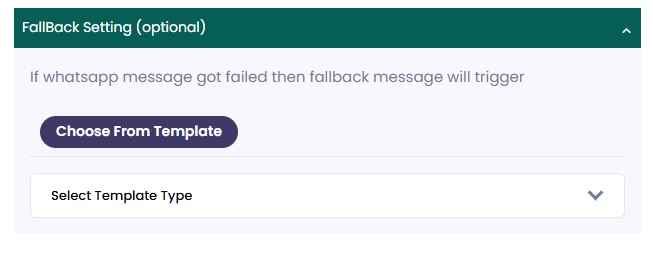
Fallback Setting
This is optional to choose. In case a WhatsApp message fails, an automatic SMS will be sent. Before proceeding with Fallback, you must set up a DLT registration and SMS template.
Choose the SMS template you want to Send in case of WhatsApp message fails.
Save or Submit Template for Approval
Once you have completed all the template details, you can choose one of the following options:
Click on “Save Draft”
This will save the template in your dashboard so you can edit or review it later.
The template will not be submitted to Meta for approval at this stage.
Click on “Save & Send for Approval”
This will immediately submit your message template to Meta for review and approval.
Once approved, you can start using it for Marketing through Authkey’s WhatsApp Marketing Platform.