How to upload an Image/Video/Doc file to the media Gallery?
To use images, videos, or PDF files in SMS, WhatsApp, or RCS, you must first upload them to the Media Gallery.
Login to your Authkey account.
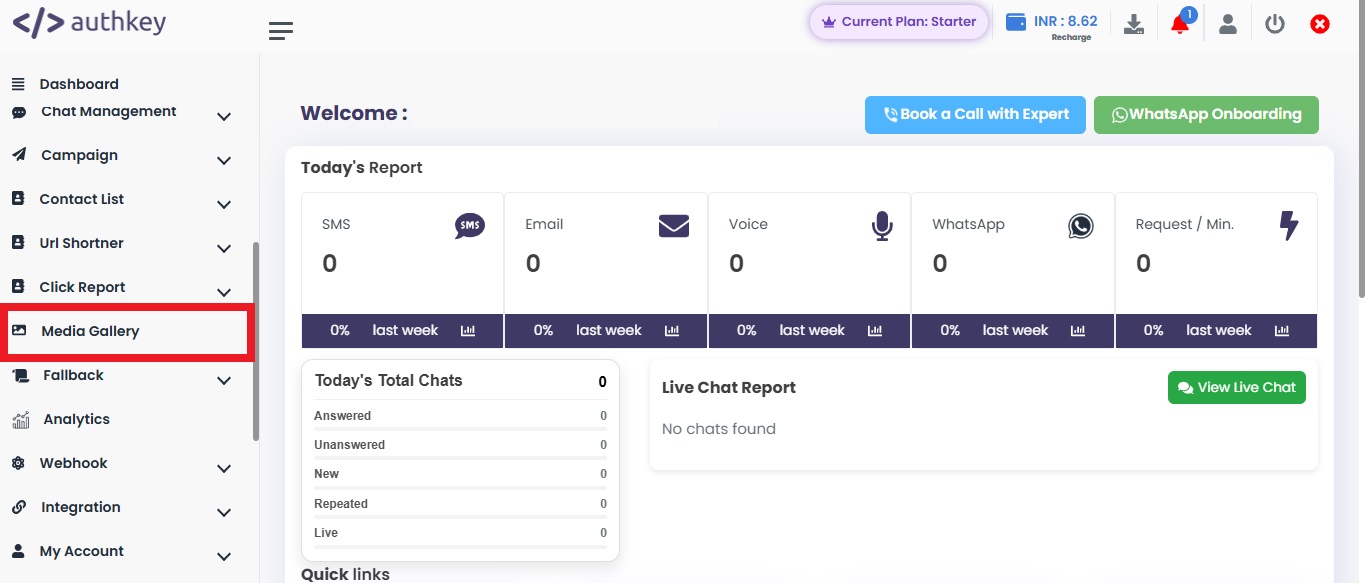
Click on Media Gallery, From the left sidebar.
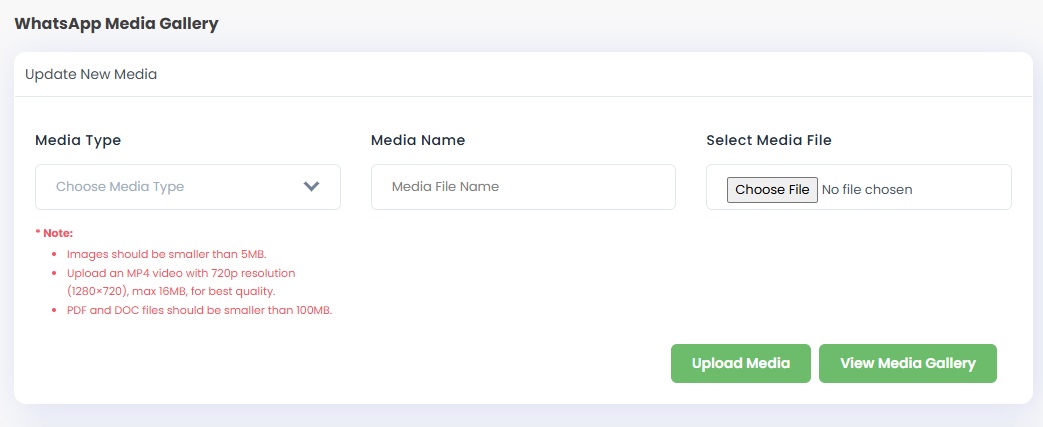
Select the type of media you want to upload (Image, Video, or Document).
Enter a name for the file so it can be easily identified later.
Click Choose File, select your file, and click Open.
Click Upload File to complete the process.
Important notes
- Images must be smaller than 5 MB.
- For best quality, upload MP4 videos in 720p resolution (1280 × 720) with a maximum size of 16 MB.
- PDF and DOC files must be smaller than 100 MB.
After the successful upload, scroll down to view your media files.
You will find the newly uploaded file listed in the Media Gallery.
From here, you can Copy URL, View, or Delete the media file.
To use the media in your campaign, simply copy the file URL and paste it into the required field.

You can now easily use your uploaded media across SMS, WhatsApp, and RCS campaigns.